Live Forms v6.3 is no longer supported. Click here for information about upgrading to our latest GA Release.
Installation and Configuration
- Former user (Deleted)
- Former user (Deleted)
provides a downloadable version for local installations that runs
without further configuration on a Windows systems. This bundle includes an HSQL embedded database. If you are planning to install a trial version of
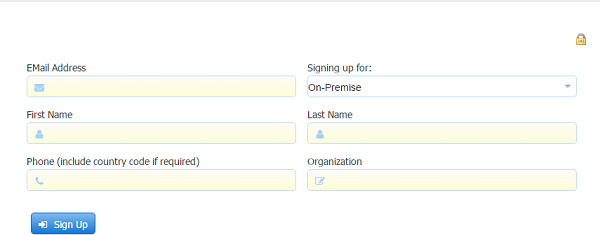
, sign up and register to download the software. Follow the steps listed below in the The Quick Start Installation Guide for easy setup of
in-house on a Windows system.
On This Page:
Hardware Requirements and Memory Configuration for your  Server
Click here to review the recommended hardware requirements and memory configuration for your in-house server.
Live Forms™ in-house Quick Start Installation Guide:
The steps below describe the Tomcat bundle installation on a Windows system.
Prerequisites
The following prerequisites must be satisfied in order to run in-house.
- http(s) connectivity to http://www.frevvo.com/ for licensing and software update.
- Review the Supported Platforms list.
- You must have the Java Development Kit (JDK) versions 1.7 or 1.8 or Java Runtime Environment (JRE) versions 7(update 21 or greater) or 8 installed on your system. Click here to go to the Java SE Downloads site if necessary.
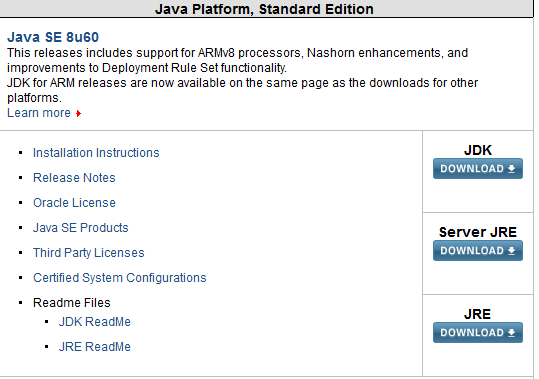
- Version 7 downloads are located further down the page.
Be sure to accept the license agreement and select the correct version 32 (x86) or 64 (x64) bit depending on the architecture of your Windows system. - When the download completes, click Run to install it.
- Return to this page and continue with Set Up the Environment when the download and the installation are completed.
Set Up the Environment
If you downloaded the JDK then make sure that the JAVA_HOME environment variable is set to the installation directory of your JDK for example, C:\Program Files\Java\jdk1.7.0_09. Refer to JDK or JRE Prerequisite for the details.
- If you downloaded the JRE then make sure that the JRE_HOME environment variable is set to the installation directory of your JRE for example, C:\Program Files\Java\jre7. Refer to JDK or JRE Prerequisite for the details.
Quick Start Installation
Once you have a machine that satisfies the above requirements, you must:
- Register on frevvo's web site.
- Download the software.
- Generate your Customer License key.
- Unpack the download zipfile
- Install the customer license key.
These steps will guide you through the process.
Download and Generate your Customer License Key
- Register on frevvo's web site.
- You will see this message:
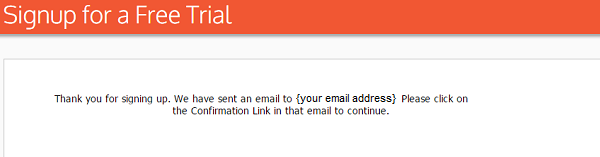
- You will receive an email to the address provided with a link to confirm your email address.
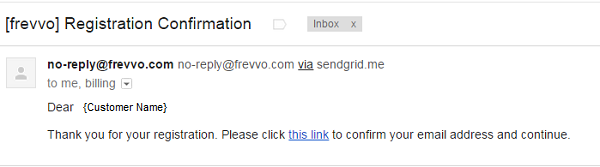
- Click on the email link to download the software to your local computer. We will unpack and install it after the license key is generated. Register a
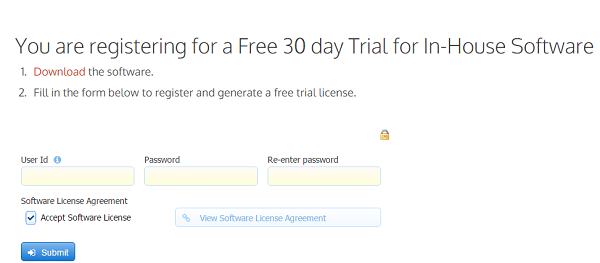
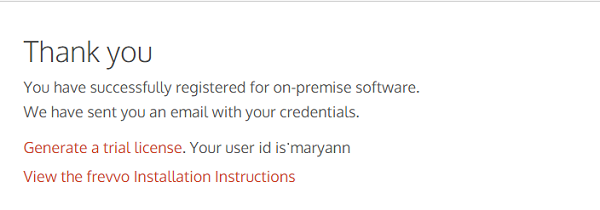
You can generate a 30 day license by clicking on the Generate a trial License link on the screen that displays or clicking on the license manager link in the email you receive confirming that your activation was successful.
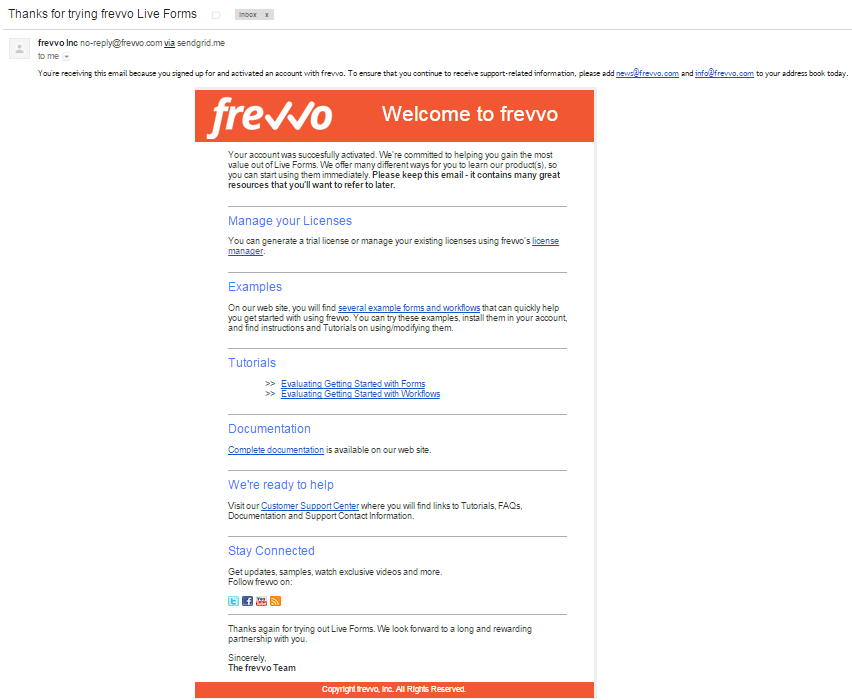
Save this email as it provides important information about Live Forms and links to the License Manager, customer support, documentation and Quick Start videos.
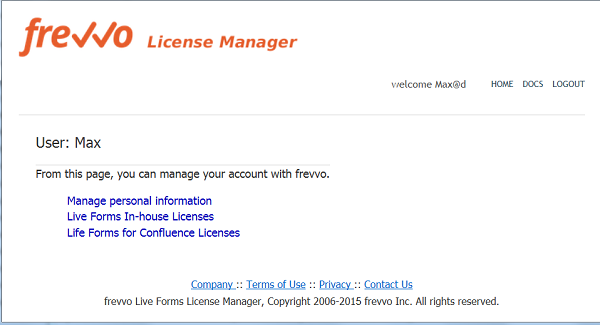
- Login with your registered user name/password to access the License Manager.
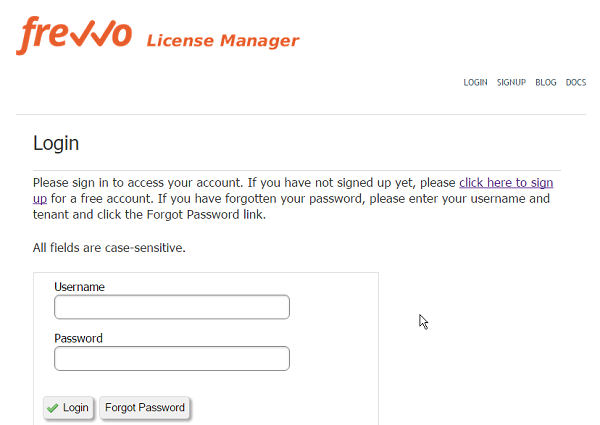
- You can manage your personal information and generate/manage
- Click the link to generate a
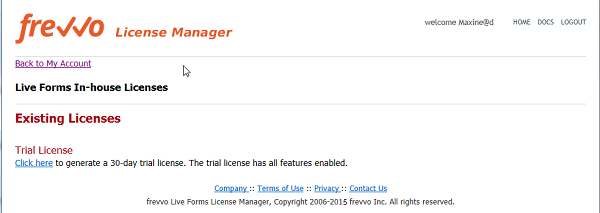
- Copy the license key. Click Back to My Account and logout of the License Manager.
Unpack the download zip
- Unzip the frevvo zip file (downloaded in Step 4 in the previous section) into a location of your choice: e.g. c:\frevvo. We'll refer to this directory below as <frevvo-home>.
- Ensure that you do not have another server running on port 8082.
- Navigate to <frevvo-home>\frevvo and double-click Start frevvo. This starts tomcat on port 8082 with
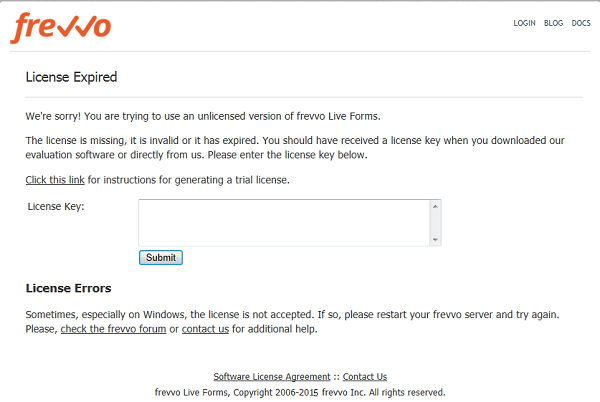
- Open the
- Enter the license key you generated in the License Key box. Click Submit. The
Create a New Tenant
Your server installation is complete. Next you must create your first tenant.
- Browse this URL - http://localhost:8082/frevvo/web/login - Change the <localhost:8082> to the server:port where you installed
- Login to
- Click the "Manage Tenants" link on the page that displays.
- There is a single tenant named d. This is the default tenant.
- Click the
 icon to create a tenant, fill in the form and submit it. The new tenant will be created.
We recommend that you do not use the admin user to create your own forms. Add a new user for that purpose.
Add a New User
- Click the
 icon, to administer the newly created tenant.
 - On the page that is displayed, click the "Manage Users" link.
- There is a single user (the administrative user you defined when you created the tenant).
- Click the
 icon, fill in the form and submit it. Assign Roles to the user as desired. Note that you must assign the frevvo.Designer role to any users who wish to design forms.
 - The new user will be created. Create as many users and assign them roles as needed.
- Logout of the admin account.
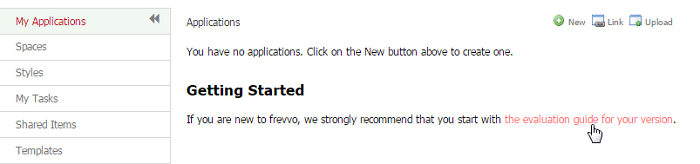
- Login as one of the newly created users with the frevvo.Designer role by filling in the user@<your tenant> ex: designer@mycompany and the password that you assigned to this user on the Login screen. The page that displays is called the Application Home Page.
- If you are new to
You can find examples on creating your own workflows on the Tutorials page. Refer to Getting Started for the next steps to follow to create forms/flows.
tenants in the cloud are initially configured with the frevvo Default security Manager. Once you have purchased a license for your
tenant, you can switch the Security Manager of your tenant and retain forms/flows, users, roles and submissions.
Tenants using the Default Security Manager can be migrated to:
- Default Security Manager → LDAP
- Default Security Manager → SAML
- Default Security Manager → Azure SAML
Tenants using the LDAP Security Manager can migrate to:
- LDAP → SAML
- LDAP → Azure SAML
If you are planning to switch the Security Manager of your tenant to LDAP or SAML Security Managers in the future, make sure the users created in the default security manager tenant have the same user names as the users in your LDAP server or identity provider.
If you want to change the Security Manager of your tenant, cloud customers should contact sales@frevvo.com to initiate the process.
Detailed Installation Instructions
When you have completed the trial period and you are ready to customize your server software, please see the detailed Installation Guide.
The bundle includes an HSQL embedded database. If you use the HSQL database during your trial period, you cannot migrate the data (user, roles, applications) automatically from HSQL to your production database. Once your production database is in place, you must manually:
- Create the tenants.
- Use csv upload feature to move your users/roles to the tenant.
- Download and upload the applications from designer user accounts in the trial database to the designer users in the new database.