This documentation is for frevvo v10.1. Not for you? Earlier documentation is available too.
Submissions Stored Inside of frevvo
- Former user (Deleted)
- Megan Ellis
frevvo comes with a built-in submissions repository. The repository can run on top of most SQL databases. By default, your form data is stored in the repository and can be viewed from the Submissions page. Fields in your form/workflow, set up as Searchable fields by the designer, can be used as criteria when searching submissions. You can also filter by default fields such as error, error description, submitter id, lock user id, started date, etc. The Insight Server and the Insight service must be running for the Submission view to work.
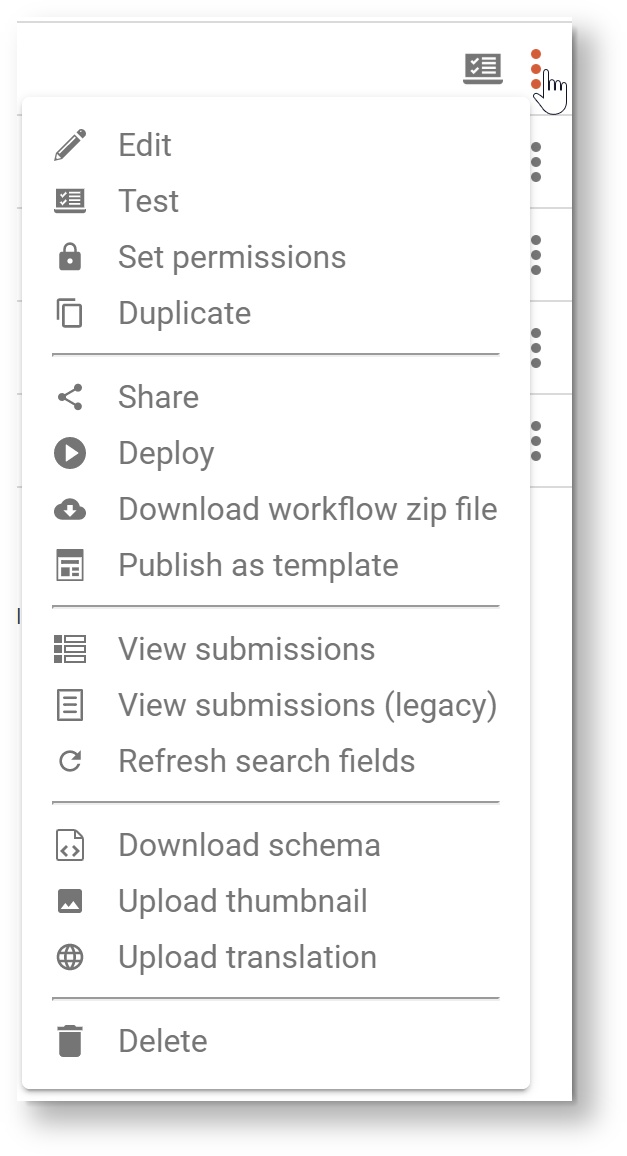
Cloud Customers will see options for both View Submissions and View Submission View (legacy). On Premise Customers have the options to hide the legacy view, among other configurations. The Submissions view works well on mobile devices and is easily embedded in a web page and wikis such as Confluence.
- The Export of submissions to Excel feature has been replaced by DownloadSubmissionstoCSVfile. You can still use the Export to Excel feature by accessing it from the Submissions Legacy view. However, the Legacy Submissions view and the Export to Excel may be removed in a future release.
- Customers running frevvo with Confluence will not see the legacy submissions view from the Confluence Screen. It is only available when you log into your frevvo Confluence tenant.
Accessing Submissions
To access submissions for a particular form/workflow, the designer who created the form (owner) navigates to the Forms and Workflows Home Page and clicks the  Submissions icon for that form or workflow. The designer can grant permission to view/edit submissions to other designers and non-designer users/roles via the Access Control feature. Non-designers granted view/edit permissions, access submissions from the Shared Items tab.
A Shared Items link is added to newly created Spaces automatically and can be added to existing spaces.

Searchable Fields
Searchable fields can be used as search criteria for submissions and tasks. They also define the fields that will be displayed and exported in the export to a csv file. Once defined, frevvo can also go back and re-index your existing submissions so you can search them using the same fields.
Submissions View
When you click the  Submissions icon a Submissions view consisting of two sections displays:
- Submissions filter section
- Matching submissions results table.
Initially, the Submissions Filter section is collapsed. Click on the  blue arrow to expand it.
Submissions Filter
The Submissions filter section contains:
- Section A - From Date and To Date fields to specify a date range.
- Section B - Check the status of the submissions you are searching for
- Other Filter Items section - setup your search criteria, including the capability to edit the logical expression used as the search criteria.
- Reset button - To start over with a new set of filter criteria, click the Reset button. This will clear all criteria, including the from/to dates, state and all rows of the other filter items.

When the expression or any of the sub-expressions change in any way, the submissions query is automatically re-run and the results are updated in the Submissions Table.
Submission From Date and To Date
The two date controls specify the time period for the submissions you see. The dates default to the current date and one month earlier, so you see one month of submission results when the Submissions page first displays. Adjust the dates if you want a shorter or longer time period.
Submission Status
The Submissions table will show submissions in the following states: SAVED, PENDING, SUBMITTED, ABORTED, WAITING. Simply check the appropriate check box in the State section. For example, It would be easy for a manager to check the current status of Expense Report approvals by checking one or all the submission types in the State box. The Submission Table dynamically changes as the submission state choices are checked/unchecked.
Here is an explanation of the available states:
- SAVED: This will return only those tasks which were created when users clicked the Save button on the form/workflow to save their partially filled forms
- PENDING: This will return all tasks which are pending, meaning someone else put these tasks in the users task list
- SUBMITTED: This will return all tasks which are completed, i.e. the form/workflow for which this task was created has been submitted
- ABORTED: This will return all the tasks that were deleted/aborted so the form/workflow never got submitted
- WAITING: The WAITING status can be used to find workflow tasks that have an Email or HTTP activity. A submission will show a state of WAITING when a workflow is routed to an anonymous user and the workflow is suspended until the this step is completed.
Choose Search Criteria from Form/Workflow Data
The Other Filter Items section describes the conditions that submissions must match in order to be included in the Submission Table. Here is how the grid works:
- Click the
 plus /
 minus icon to add/remove rows. Rows are labeled numerically beginning at 1 and are color coded. You can specify up to 100 rows of filter criteria.
 - Specify the field, condition and value for the search criteria you are adding. For most conditions, all three columns are required but there are some that may not require a value.
- As you add fields and conditions, they are automatically added to the logic expression field by appending an "AND" and the character of the sub-expression (A for the Date section, B for the State section or the number of the row in the filter table as appropriate). Each sub-expression is color coded for quick reference. The characters for the sub-expressions are also color coded to match the row in the grid where the expression is defined.
- Click the Edit button to modify the logic expression.
- Click the Reset button to clear all of the search criteria.
Let's take a closer look at the columns in the Other Filter Items grid.
Field Column
The Field column includes a dropdown where you can select any fields that were specified in the Searchable fields wizard in your form/workflow or you can choose from default columns that are available across all form and workflow types.

Condition Column
The Condition column choices depend on the data type of the selected field. Click below to see a list of the data types and their corresponding options.
For example, the choices in the Condition dropdown, will be different if you select the Submitted Date or the ProjectName, which is a searchable field in the form/workflow from the Fields list.

Condition Choices when a Date field is selected from the Fields list.

Condition Choices when ProjectName, a text field in the Expense Report workflow, is selected from the Fields list.
Value Column
The values entered into the Value Column depend on the field type and also sometimes upon the condition chosen. Click below to see a table of the allowed values for Field Type(s) and conditions. The Values column is not case-sensitive, so entering "apple," "Apple," or "APPLE" will return the same list of results that contain those letters either upper- or lower-case.
For Example, if you select a Date field, the Date Picker is provided to help enter the value. If you select a Text field from your form/workflow, you will be prompted to "Enter text" for the value. If you select the Error metadata field, the value choices will be True or False in a dropdown in the Value column.
A Date/Time field with the "is within last" condition selected, requires a special time duration entry. The duration must be entered in this format: Years:Months:Days:Hours:Minutes. Fields to the left may be omitted. For example, if you were searching for submissions that were submitted within the last 2 hours you can enter 02:00 or as 2:0. To search for submissions created within the last 2 months and 12 days, enter 02:12:00:00.
If you enter an invalid value, an error will display with instructions:

Editing the Logical Expression
If you want to modify the logical expression, click the Edit button. The logic expression becomes editable.
The Logic Expression allows you to customize and combine the filter conditions using ANDs and ORs as well as parenthesis () to group terms of the expression.
- Each filter item (expression) is represented by a letter (A for the Date range or B for the State or a number that corresponds to the row of the sub-expression in the Other Filter Items grid).
- Combine the letters and numbers using parenthesis to group items as needed.
- Build the logic of the overall predicate expression using AND and OR as appropriate.
- Click save when done to save the expression. Please correct any indicated parse errors in order to save.
For example, let's say you have a Job Application that has 3 submissions:
You want to display the submissions that were submitted on November 7, 2016 or any of the applicants that live in Connecticut (Home Phone Area Code is 203):
- Expand the Submissions Filter.
- Select the SUBMITTED state.
- Select the Acknowledgement Date field from the Fields dropdown
- Select "is equal to" from the Condition dropdown.
- Use the Date Picker to select "11/7/2016" as the value.
- Add a row to the Other Filter Items grid.
- Select the Home field from the Fields dropdown.
- Select "begins with" from the Condition dropdown.
- Enter "203" as the value.
At this point, the expression displays only one submission that has an Acknowledgement Date of 11/7/2016 AND has a Home Phone number that begins with an area code of 203. 
This is not the expected results. To display the submissions that were submitted on November 7, 2016 OR have a Home Phone number that starts with an area code of 203, the logical expression has to be modified.
- Click the Edit button.
- Change the expression to A AND B AND (1 OR 2)
- Click the Save button.
The submissions that match the Date range and State conditions and either were submitted on November 7, 2016 OR contain a Home phone number that starts with an area code of 203:

Upon selecting the Save button, the logic expression is parsed for correctness. If there is any parsing failure, an error message describing the failure is displayed and the screen remains in edit mode. If there is no error, then the screen returns to read-only mode.
Recap
In summary, let's say Jerry, a manager wants to create a submission query to check the status of all Expense Reports for Sales Demonstrations performed by the Sales department within the last month:
- Make sure you have a field in your Expense Report to specify the Project Name - for example, a dropdown with Infrastructure, Sales Demonstration and Customer Meeting options.
- Make sure Jerry has been granted permission to view submissions in the Access Control List for the Expense Report workflow.
- Create a Space and distribute the link to the Space to Jerry
- Jerry access the Space and logs into frevvo.
- Jerry clicks on the Important Items tab in the space.
- Jerry clicks on the Shared Items tab.
- Jerry clicks the
 Submissions tab for the Expense Report workflow.
- On the Submission Filter screen, Jerry selects:
- The Project Name field from the Fields dropdown
- The contains condition from the Condition dropdown.
- Types "Sales Demonstration" in the Value column.
- In the Submission Table, Jerry can quickly see that Ricard Walker has saved an Expense Report for a Sales Demonstration to his Task List, Maria Myers has an Expense Report for a Sales Demonstration pending approval and an Expense Report for a Sales Demonstration was completed for Deborah Morris.

Submissions Table
Submissions matching the submission filter are displayed in the Submissions table. The table has the following features and behaviors:
- The results are displayed a page at a time. The Previous, Next page buttons and individual page links, located in the lower right corner, can be used to "page" through the submissions.
- Select the number of submissions to display on a page from the choices in the Show 10 entries dropdown in the upper left corner. The default is 10, with 25, 50 and 100 being the other available sizes.
- The Record/Page summary appears on the lower left of the table . This details the records being shown on the current page and the total records matching the criteria.
- To select an Individual submission, check the checkbox next to that submission in the Select column (second) in the table. Checking the checkbox in the Select column header, selects all submission records in the table. This action toggles the selection state of all rows in the table.
- The table is responsive and only displays columns it can fit on the display. Additional columns can be viewed by clicking the plus icon. The overflow columns are displayed in this secondary row. The overflow columns will wrap if necessary.
- Most columns in the table can be sorted. Clicking on a single column determines the sorting direction (ascending/descending) for all the sortable columns. An example of a column that cannot be sorted is Age/Duration. See below for the details.

Some of the Action buttons on the upper right of the Submissions Table require the selection of one or more submissions while others do not. Click below for a list of the buttons and their functions.
Submission Table Columns
The Submission Table displays all of the default columns plus columns for Searchable fields configured by the form/workflow designer. Click below for a list and description of the default columns.
Default Columns
The table list the describes the default columns that appear in the Submission Table. You cannot change the order of the default columns but you can Show or Hide them in the Submission Table.
| Column Name | Formatted | Default Column | Description |
|---|---|---|---|
| Submitted | Date/time | Yes | Time/date of the submission |
| Error | Yes | A  yellow icon in the Err column indicates the data was captured but there was an issue with the request. For example, if you set the form action property to go to a URL after the user clicks Submit but the URL is invalid, you would see a yellow icon. Or if the form action was set to send an email but the email address was missing, this will also cause a yellow icon to appear on the submission. yellow icon in the Err column indicates the data was captured but there was an issue with the request. For example, if you set the form action property to go to a URL after the user clicks Submit but the URL is invalid, you would see a yellow icon. Or if the form action was set to send an email but the email address was missing, this will also cause a yellow icon to appear on the submission. | |
| State | Text | Yes | Submission status: SUBMITTED, PENDING, ABORTED, SAVED, ERROR WAITING. This column displays the submission types selected in the State section of the Submissions Filter. |
| Submitter ID | Text | Yes | frevvo user ID of the logged in tenant user submitting the form or blank if the form was submitted by an anonymous user. |
| Submitter Name | Text | Yes | First and Last Name of the logged in tenant user submitting the form or blank if the form was submitted by an anonymous user. |
| Lock User ID | Text | Yes | If the submission is currently locked (and not SUBMITTED), this is the user id who has it locked. |
| Lock Date | Date/Time | Yes | If the submission is currently locked (and not SUBMITTED), this is the time/date when it was locked. |
| Lock User Name | Displays the First and Last name of the user who has a task locked, when viewing Pending tasks. | ||
| Started Date | Date | Yes | Date when the submission was created. |
| Age/Duration | Days, Hours, Minutes | Yes | For completed submissions (State=Submitted) this is the time interval for how long it was in process - from the first incomplete submission (Pending, saved, etc.) until it reached SUBMITTED status. If the submission is currently incomplete (i.e. SAVED, PENDING or WAITING), then the time interval shows how long has it been in process so far (Age). |
| Error Description | Text | Yes | Description of the error if the error column is true. |
This image shows a PENDING submission for a Purchase Order workflow. The first step of the workflow was submitted by a designer user (Submitter ID), Giorgio Armani (Submitter Name). It is currently pending approval by his manager, Jerry Mouse (Lock User Name). Jerry's frevvo user id is jerry (Lock User ID).
Searchable Field Columns
In addition to the default columns, the Submission Table contains columns for each searchable field setup for the form/workflow. Notice the Report Date, Project Name, Employee Name, Reviewer, Expenses Approved, Paid On Date and Check in the Expense Report workflow submission shown in the image. These columns are generated by fields in the workflow configured as Searchable fields. 
You can change the order of the Searchable Field columns by moving field positions in the Searchable Fields wizard. The changes will not reflect in the Submission Table until a new submission is created or existing submissions are resubmitted.
Show/Hide Columns
Clicking the Columns button in the Submission Table, allows the user to toggle the visibility of each table column. Initially, all columns are visible indicated by displaying their respective button in yellow. You will see the default columns and columns for each of the Searchable fields defined in the form/workflow.
Clicking a column toggles it to grey to indicate that it is not visible. Clicking it again toggles to visible/yellow. As you check/uncheck columns, the columns in the table change as appropriate.
Once you select your columns, the modified column view displays until you go back to the Forms and Workflows Homepage. If you redisplay the submissions, the original column view displays. If you use your computer function key to refresh the screen, the original column view displays. Use the Refresh button on the Submissions Table if you require a refresh.
Submissions Detail
When you click the  Submissions icon, you will see submissions for the previous month for that form/workflow. Notice the View/Edit and Delete submission buttons are greyed out. Checking the checkbox preceding the submission in the table enables these buttons.
To view a particular submission results document, double click the submission row of interest in the table.

You will see a Data, Signature and Document Tab. Clicking on the X closes the submission detail popup.

The Data Tab shows the user’s view of the data. This means for money controls you’ll see dollar signs, decimals and commas, for example. The Label column corresponds to the labels on your form, and the Value column shows you what the user entered in each control. This tab is view-only; you cannot edit any data shown here. This tab displays only form fields setup as Saved Fields in the form designer. If you do not see a specific form field then go back and edit this form to add the field to the Saved Fields tab.
Remember that Saved Fields are only used if you want to Export your submissions to Excel. This feature is only available from the Legacy submission view. The Export of submissions to Excel feature has been replaced by DownloadSubmissionstoCSVfile. You can still use the Export to Excel feature by accessing it from the Submissions Legacy view. However, the Legacy Submissions view and the Export to Excel may be removed in a future release.
- The Signature Tab shows you all the users that signed the form using frevvo' wet and digital signature features.
- The Documents Tab shows you the exact XML document that was generated when the form was submitted.

Viewing Attachments & PDF Images
Scroll to the bottom of the Data Tab to see all attachments uploaded to the form submission. If you selected Save PDF for this form in the form designer, you will also see an attachment named <form name>.pdf. This is an image of your form exactly how the user saw it when they filled it in and submitted it to you. Remember, decorators and placeholders do not appear in PDF's. The image below also shows W4-pdf and I-9.pdf attachments. These are additional Pixel Perfect PDFs generated for the Employee's Withholding Allowance Certificate and the Employment Eligibility Verification federal forms. Click the links on the Data Tab to view the PDFs or attachments.

One of the attachments is a Wet Signature image. Clicking on the SubmissionsDetailtab lists the manager, Jerry's digital signture and the and wet signature image of the new employee. The signature image can be downloaded from the Data or Signature tabs of the form submission. There you will find information about any digital signatures that were stored with the form. See Electronic Signatures for more information.

Selecting zip as the Restricted/Mime type, uploading a zipfile and submitting the form may exhibit some unexpected behavior when downloading the zipfile from the submission. Clicking on the attachment in the frevvo submission repository does not save the uploaded zipfile as a zipfile. Instead, it will save it as a file with an unrelated name e.g. Upload91 or ProfilePicture. As a workaround, you can open the file using winrar.exe and then save it or simply use right click and and select the 'save as' option if it is available.
Currently the layout/style for submission pdfs depends on where the last activity is submitted. For Example, If the first activity in a workflow is submitted from a space and the second activity is performed directly from a Task List outside the space, the submission PDF renders in the layout/style the Task List uses. If the last activity in a workflow is submitted from a space, the submission pdf renders in the space's layout/style.
You can specify the name for the pdf and margins, header/footer content. Click the links for the details.
The File Name property allows the designer to rename attachments uploaded using the Upload Control.
Viewing XML Documents
frevvo always stores your form data as XML documents. To view the XML data, click the Documents tab in the Submission Details panel.

Dates will be stored in the YYYY-MM-DD format. There is no conversion to UTC timezones for the time control in the XML document. Date/Time values will be converted to the XML standard YYYY-MM-DDTHH:MM:SSZ.
Most business users can safely ignore the xml, but it can be helpful when debugging a form and when integrating with another entity such as a database.
Submission Errors
If your submission has an error, you'll see an icon in the Error column in the submissions list.You can get more information about the error in two ways:
- Hover over the icon
- Display the Error Description column. The Error Description column is the last default column in the Submission table.

Another way to get information about the error is to double-click on the submission to view its details, and again hover over the icon.

If a mapped pdf has a severe mapping error such as (Invalid E-form field), the workflow will submit and the pdf is generated. The submission is marked in error with a icon in the Submissions table. You will see the error: "One or more generated PDF forms generated with mapping errors. Some information may be missing." on the submission.
The Error Description column is the last default column in the Submission table.

If the Insight Server is down, submissions for ALL of your forms/workflow will no longer display. You will not see the error icon or any error description in the Error or Error Description columns. 
The tenant admin receives an email to alert them that the submission never reached the Insight Server.

The following error is logged in the In the <frevvo-home>\tomcat\logs\frevvo_YYYY-MM-DD.log,
18:07:09.654 |-ERROR [http-nio-8082-exec-3] [.s.s.FormSubmissionService] [mycompany designer] [5750c49b-be25-4715-81f1-2d3a94c30e1b 76DF75577B56B8BBEE392ACB16CEE3CE] [ ] - Could not send submission to insight server. org.springframework.data.solr.UncategorizedSolrException: Server refused connection at: http://localhost:8983/solr/mycompany; nested exception is org.apache.solr.client.solrj.SolrServerException: Server refused connection at: http://localhost:8983/solr/mycompany
Reports will show the message "No data available in table". Once the Insight server is restarted, the submissions will show in the Recent Submissions report and submissions will redisplay reporting the error. Remember, the Error Description column is the last default column in the Submission table.
Email Size Exceeded Error
This section applies only to frevvo Cloud Customers.
The frevvo mail server limits email size to 30MB. If emails sent in Activity Doc Action or Document Actions exceed this limit, your tenant admin may receive an email bounceback from "Mail Delivery System <"MAILER-DAEMON@sysops+stage"@frevvo.com>" that contains error like this "message size 34559092 exceeds size limit 31457280 of server smtp.sendgrid.net[107.20.8.136]".
The only workaround for this issue at this time is to limit the Upload control max size and/or min # properties in your form. If you have a submission that has hit this error, you must edit the submission, delete some of the attachments and then resubmit.
Editing Submissions
Only submissions in the SUBMITTED state can be edited. If you have the correct permissions, submissions can be edited easily by clicking the form name rendered as a clickable URL on the submission. In this image below click on "Product Order Form" to edit the submission.

This will reload the current version of the form with the data from this old submission. If the form is linked to any back end systems (via Doc URIs) these links will not execute as it would possibly change the submissions data. You can then edit the data in the form. All date/time controls will have the values automatically loaded in your machines local timezone. The submission date/time in the image below shows Aug 21, 2014 2:42 pm. This date/time is the timezone where the form server was running when this form was originally submitted. The <OrderDate>2012-05-15T20:38:44Z</OrderDate> is the date/time value in the OrderDate form field converted to UTC timezone. When this form loads, if the browser's timezone is America/New_York, the OrderDate control will display the value 16:38:44 as America/New_York is -4 hrs from UTC on a date where Daylight Savings Time is in effect.

Forms configured with a Doc URI will not execute the Doc URI when you edit the submission. The data displayed when you edit a form/workflow submission is from the submission data at the point in time when the form was originally submitted. Any Doc URIs will not execute and thus will not refresh data from your backend system.
When you click submit on the form/workflow the data in frevvo submission repository with be updated with the new data. If the form properties are set to save a PDF then the PDF will also be replaced. You must perform a refresh to see the updated information for Searchable fields for forms/workflow on the Data tab after editing a submission.
If the current version of the form is different then when the data you're editing was originally submitted then some of the data may not be visible. For example if your form contained a field for "detailed description", and the current version of your form no longer has that field as the designer removed it, then the detailed description data will exist but will not be visible/editable.
The designer can grant permission to view/edit submissions to non-designer users via the Access Control feature. Once permission is granted, submissions are accessible as Shared Items. It is also possible to build your own project that enables editable access to non-designers using the Data API.
frevvo Cloud users can edit submissions by default. In-house customers can turn off the edit link for all users by modifying the frevvo.submission.edit.link configuration property in the <frevvo-home>/WEB-INF/web.xml or the <frevvo-home>/tomcat/conf/catalina/localhost/frevvo.xml files.
Restarting a Workflow
To restart a workflow that has already been submitted:
Logged into frevvo as the flow/form designer user and edit the submission.
Once you have the submission open, click the "Save" button. This will save it to your (workflow designer's) task list.
Go to your task list and click "Modify this Task."
Select the first step of the workflow.
Sorting Submission Results
Columns in the Submission Table that are sortable display the  up and down arrow icon in the column header. Clicking on the up section of the arrow icon in one column sorts all the columns in the table in the ascending direction. Clicking on the down section of the arrow icon in the column header in one column sorts all the columns in the table in the descending direction. This icon can also be used to toggle the sort direction. Submitter Name, Lock User Name and Age/Duration columns are not sortable.
At any time as a shortcut you also can click anywhere inside the column header to toggle the sort of the results in ascending or descending order.
Changing the sort of a column from a submission table page > 1, goes back to page when when displaying the results. This is as designed.
Deleting Submissions
The ability to delete submissions from the Submissions Table depends on your frevvo role, assigned Access Control permissions and the type of submission.
Who Can Delete submissions
The form/workflow owner ( the designer who created the form/workflow) and any user given the Edit Submission permission by the designer, can delete submissions in the SUBMITTED, ABORTED and ERROR states.
The tenant admin, workflow admin or the workflow’s designer/owner can delete submissions in the PENDING, SAVED or WAITING states in addition to submissions in the SUBMITTED, ABORTED and ERROR states,.
Deletions of PENDING, SAVED or WAITING submissions are first aborted then soft deleted. Users given the Edit Submission permission that are not the tenant admin, a workflow admin or the designer/owner of a form/workflow will see this error when attempting to delete submissions in these states.

The ability to delete PENDING, SAVED or WAITING states is not available in the Legacy Submissions View
How do you Delete Submissions
The Delete button is only enabled when one or more submissions is selected. The user is prompted with an ok/cancel dialog to confirm deletion of the selected submissions. If ok/yes, the submissions are deleted, the filter re-runs and the Submission Table is refreshed.
When you click the Submissions icon, the submissions from the last month display. You may see submissions in various states. Notice the View/Edit and Delete buttons are greyed out.
To delete all the submissions on the page, check the checkbox in the select column header then click the Delete button.
You will be asked to confirm
To delete a single submission, check the checkbox preceding the submission in the table. Notice the View/Edit and the Delete buttons become enabled. You will be asked to confirm.

Users that are not granted permissions to delete submissions see this error:
A successful deletion displays the following:
Download Submissions to CSV file
Submission data can be exported to a CSV (comma separated value) file that can be easily opened in Microsoft Excel. The contents of the csv file depends on the submissions that are displayed in the Submissions Table. The default columns and any form fields designated as Searchable fields appear as columns from left to right in the csv file.
Verify that your SearchableFields are properly set up in the form/workflow and that you see the expected columns in the SubmissionsTable before Downloading to CSV.
Click the Download button icon at the top of the submissions table to download the csv file. The message below displays:
If you open the csv file using a text editor the file will look like this:

If you open the csv file with Microsoft Excel, the file will look like this: Note the Date of Invoice, Last Name, First Name, Phone, Product and Email columns are set up in the form as Searchable fields and reflect the data in these fields.

For example, let's say your requirement is to upload submission data from frevvo to a different website.
- Perform the submission query so the data that you to download displays in the table. The SubmissionTable in the submission table appear in the spreadsheet even if you are not displaying them in the table. Hide the columns in Excel if you do not want to display them in your spreadsheet.
- Click the Download button to save the csv file.
- Open the file in Microsoft Excel.
- Show/Hide columns in the spreadsheet if desired.
Switching from Export to Excel to CSV Download
Cloud Customers:
The maximum number of Searchable fields is 20 per form/workflow.
- Edit each form/workflow where Export to Excel is configured
Click the Setup Searchable Fields link
Click the Saved Fields tab and review the fields previously set up as Saved Fields
Click the Searchable Fields tab and add every field into the Searchable Field list that was in the Saved Fields list
Save your changes
Email support@frevvo.com to request that the Refresh Searchable Items process be run on your tenant if you want to update older submissions with the changes.
- In-house Customers:
If you have forms/workflows exporting more than 20 fields to Excel, add the frevvo.max.searchable.fields parameter to the frevvo.xml file
Change the value to the number of searchable fields that you want.
Edit each form/workflow where Export to Excel is configured
Click the Setup Searchable Fields link
Click the Saved Fields tab and review the fields previously set up as Saved Fields
Click the Searchable Fields tab and add every field into the Searchable Field list that was in the Saved Fields list
Save your changes
Manually run the Refresh Searchable Items process if you want to update older submissions with the changes.
Changing the Column Order in the CSV file.
To change the order of the columns created from the Searchable fields in your form/workflows:
- Change the order on the Searchable fields tab using the setup wizard
- Create a new submission to reflect the new column order in the Submissions Table.
- The csv file will reflect the new column order.
Repeating Data
Forms containing repeat controls designated as Searchable Fields generate comma separated data in a single row in the exported csv file.
Consider an Airline reservation form where the number of traveler information sections displayed or the number of rows in a table is based on the number of airline tickets purchased. A section named Travel Information inside of a Repeat is designed to collect information about each traveler. Travel No, First Name and Last Name are set up in the form as Searchable fields.
The Submission Table shows the submissions. Several columns are hidden for this example.

The csv file is shown in the image:
Columns in a table can be designated as Searchable fields. If you change the Repeat Control to a Table in the Airline Reservation form discussed above and specify the TravelNo, First Name and Last Name columns of the table as Searchable fields, the submissions view and the csv download will be the same as shown for the form with a Repeat control.

Airline Reservation Form with a Table Control

Airline Reservation Form Submission View

CSV Download for the Airline Reservation Form with a Table control
Date and Time Controls exported to the csv file
Date controls are stored in the XML document in the YYYY-MM-DD format. Time controls are NOT converted to UTC in the XML document. Date/Time values are converted to the XML standard YYYY-MM-DDTHH:MM:SSZ.
For Example: The Product Order Spreadsheet two submissions: one customer order entered on October 14, 2016 at 2:30 PM and another on November 14, 2016 at 10:30 PM in the Eastern Standard Time Zone
Viewing the Documents tab in the submission details for the November order, notice the Order Date and Time is expressed in UTC while the separate Date and time fields are stored as expected for those datatypes. 
Even though the Data and Time fields are stored in the xml as shown above, when you export the submissions, Date,Time and Date/Time controls are displayed in UTC in the csv file and in Excel. Note the -05:00 indicates Eastern Standard Time while the -04:00 represents Daylight Savings Time.

Numbers or Text Controls with Leading Zeros
When you open a csv file in Excel, number or text control submissions that contain leading 0's will have the leading zero removed. For example a zip code entered "06405",

will appear in Excel as "6405".

This happens because Excel makes assumptions about the way imported data should be formatted; usually leading zeros are mathematically insignificant, so they are removed. You can keep the leading zeros in CSV files by using Excel's Text Import Wizard. (These instructions may vary based on your Excel version.)
- Launch Excel Spreadsheet. Click the Data tab.
Click the From Text/CSV icon. Use the file manager to locate the CSV file you want import.
Click Import.
- Select Comma from the Delimiter dropdown.
Click Transform Data.
Select the column(s) that contains the data with leading zeros. Change the Data Type to "Text". The preview will refresh to show your data with leading zeros.

Click Close & Load.
Submissions View on Mobile Devices
The Submission view screen is designed to be responsive to different screen sizes. You will notice a different layout for small screens (< 640px) such as the iPhone.
The "Other Filter Items" grid renders with a vertical layout of field, condition and value. 
- Values are selected from a wheel scroller user control that displays when the user touches the field.
.png?version=1&modificationDate=1622577323000&cacheVersion=1&api=v2&width=310&height=400)
- The matching submissions grid/table only displays columns it can fit . Click the plus icon to view additional columns.
- The Action buttons (Refresh, View Submission Details, Delete and Show/Hide columns) do not have text labels on phone screens (<640px). Also,
- The page size selector and individual page selection buttons do not show on smaller screen sizes (<640 px).

Viewing submissions from the Shared Items tab (inside or outside of a space) on an IOS device (iPad,iPhone), may require an application to edit and save Excel.xls files. This requirement is browser specific.
Processing submission data using the frevvo API
frevvo provides a complete API for interacting with the system. Using the API, you can query submissions, download submission PDF/XML etc. Using the API is documented in its own Tutorial.