frevvo Latest - This documentation is for frevvo v10.3. v10.3 is a Cloud Only release. Not for you? Earlier documentation is available too.
Refresh Searchable Items
Searchable Fields are controls in your form/workflow used as search criteria for submissions and tasks. It is up to the form/workflow designer to designate which controls should be set up as Searchable fields.
Forms/workflows can be a work in progess - requirements change over time. What happens if you need to add or delete Searchable fields and you want your previous submissions to reflect your changes?
frevvo includes a web app (insight.war) that contains a batch process to extract all the latest submissions from frevvo and create Insight Server documents for them. Indexed submission data is stored in <frevvo-home>\data\solr directory and is needed for the frevvo Reports feature and Submission and Task searches. This web app is embedded in the <frevvo-home>\tomcat\webapps\frevvo.war file in the tomcat bundle.
Searchable fields can be refreshed for:
- Tenant level searchable items - must be initiated by the frevvo Cloud or customer in-house superuser administrator. Cloud customers must contact frevvo to request a refresh of Searchable fields for your entire tenant. frevvo will run the Refresh process during a time when your users are NOT using frevvo.
- Fields within forms/workflows in all tenants or a specific tenant will refresh the Searchable Fields selected in Form/Workflow properties.
- Searchable items (Projects, Forms, Schemas, etc.) in all tenants or a specific tenant will refresh the names & descriptions used in the Search feature.
- An individual form or workflow - can be initiated by Designers (owners), Tenant Admins or any designer user given permission to edit forms/workflows for a frevvo Cloud or in-house installation.

On This Page:
Run the Refresh Searchable Items Process
Follow these steps to manually Refresh Searchable Fields for all forms/workflows in all tenants or a specific tenant. This process is initiated by the frevvo cloud and in-house superuser administrators.
The in-house superuser or the tenant admin can also initiate a refresh for a particular form/workflow. See Admin Initiation of Refresh for a particular form or workflow for the details.
Start the Refresh Searchable Fields Process
- Login as the server admin - admin@d
- Click the Refresh Searchable Items link on the Manage Server screen. The chart shows the following information for the last 1000 batch runs:
- Date and time when the batch job was Started
- Date and time when the batch job completed/failed/stopped or was marked abandoned.
- Status of the batch jobs previously run - completed/failed/stopped/abandoned.
- The user id and name of the user who ran the process.
- Description of the process - was it run for all tenants, a specific tenant or a particular form/workflow.
Click the
 icon to initiate a new process. Use the
  Refresh icon to update the table with the most recent information.
- If refreshing production forms/workflows, remember to run the process when the forms/workflows are not being used.
- You should be able to see all submission 60 seconds after the batch completes.
The Start Refresh of Searchable Fields screen displays.
Select what Searchable Data is to be refreshed:
Fields within Forms/Workflows will refresh the Searchable Fields selected in Form/Workflow properties.
Searchable Items (Projects, Forms, Schemas, etc.) will refresh the names & descriptions used in the Search feature.
- All - refreshes both of the above data types.
Select the tenant(s) for the batch job run. The choices are:
- All Tenants on the server
A Specific Tenant
- If you select Specific Tenant then you must specify the tenant name. Type part of the tenant id into the search field and click the Search button. In the image, the Refresh Searchable Fields process will run for a tenant named mycompany. Notice only a partial portion of the tenant id was typed into the search box to display the list of tenants that meet the search criteria:
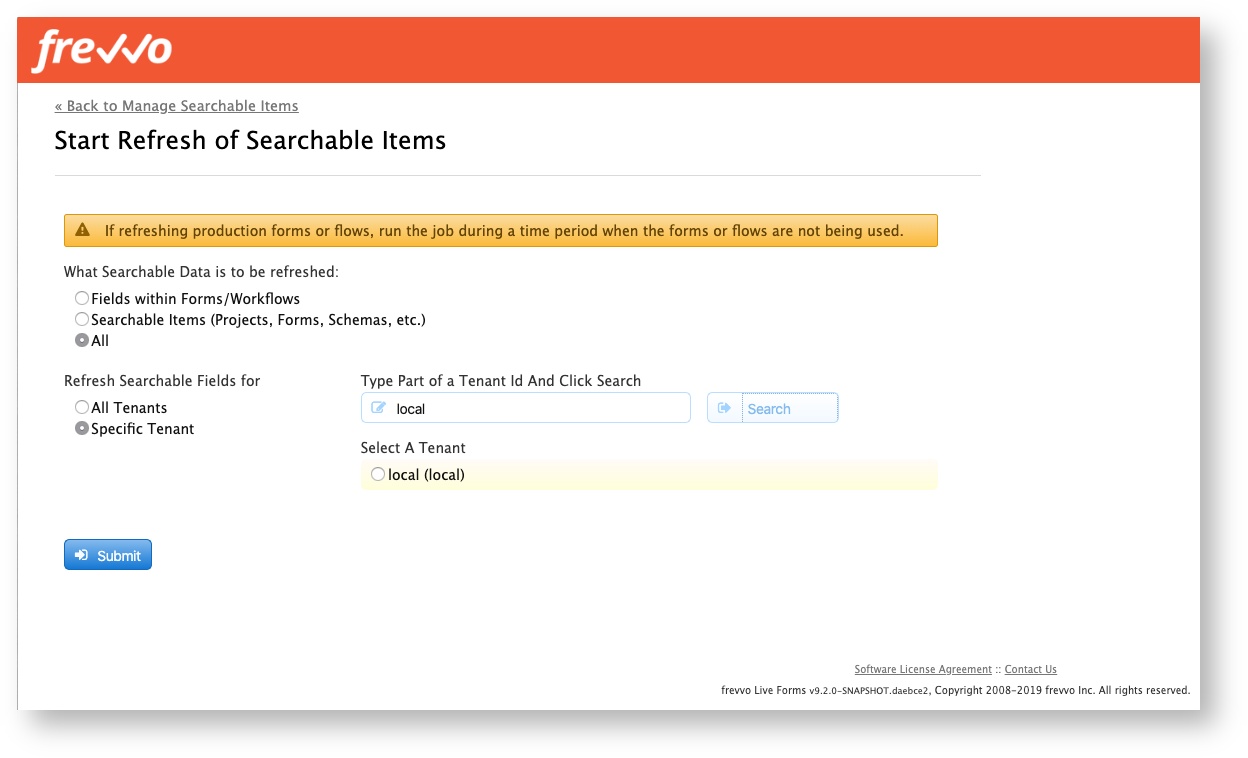
- If you select Specific Tenant then you must specify the tenant name. Type part of the tenant id into the search field and click the Search button. In the image, the Refresh Searchable Fields process will run for a tenant named mycompany. Notice only a partial portion of the tenant id was typed into the search box to display the list of tenants that meet the search criteria:
- Click Submit to start the process. The Refresh Job Status screen redisplays with a success message, the Date and time the batch job began, the user who initiated the process, a description of the process and the status of the process as Started.

- Click the Back to Manage Server link to return to the Manage Server screen.
Stop the Refresh Searchable Fields Process
Once you have initiated the Refresh Searchable Fields process, the frevvo UI allows for the job to be stopped or aborted. The process can be stopped if it is in the STARTING or STARTED state.
You will notice a Stop column in the row in the table for the process that was started. To stop the job:
- Click the Stop icon
 .
.
- Click Ok to confirm.

- When the process is stopped, the status column will update.

The tenant admin can stop any Refresh Searchable Fields process running in the tenant.
Restarting a Stopped Insight Data Batch Process
When the Refresh process runs, tables that store the state of the job are created in the frevvo database. By default, if a job were to fail or be stopped, starting the job again would restart the failed/stopped job from where it failed/stopped.
To restart a Stopped/Failed batch job, simply start the batch job again with same tenant and it will resume the last stopped job.
To prevent the last stopped job from restarting, change the status to Abandoned.
Abandoning the Insight Data Batch Process
The Refresh Searchable Fields process can be abandoned if it is not in the STARTING or STARTED state. The process must be stopped to mark it as abandoned. This prevents it from being restarted. You may want to abandon a batch job if it failed and restarting it would result in another failure. Abandoning the batch job allows you to start over again with a new process.
When you stop a batch process, you will notice Stop and Abandon columns in the row in the table for the process that was started. To abandon the job:
- Stop the Refresh Searchable Fields Process
- Click the
 Abandon icon in the row in the Abandon column for the process you want to prevent from restarting.
- Click Ok to confirm.

- The Refresh Job Status screen will update.

Specify a Submission Start Date for the Insight Data Batch Process
If you are not interested in data before a certain date, configure the property index.submission.start.date to a date in the YYYY-MM-DD format in the <frevvo-home>\tomcat\conf\frevvo-config.properties file. The batch will then exclude any submissions before this date.
Admin Initiation of Refresh for a particular form or workflow
The frevvo Cloud or in-house superuser and the tenant admin can Refresh Searchable Fields for a particular form/workflow. Follow these steps:
Superuser Admin
- Login as the superuser admin.
- Click Manage Tenants.
- Select the tenant containing the designer account for the form/workflow you want to update by clicking on the
 icon.
icon. - Click Manage Users.
- Login to the Home page of the designer user account that contains the form/workflow you want to update by clicking on the
 icon.
icon. - Navigate to the Project Home page where the form/workflow is located.
- Navigate to the Forms and Workflows Home Page. Click the
 icon to run the Refresh Searchable Fields process for the form/workflow you want to update.
Tenant Admin
- Login as the tenant admin.
- Click Manage Users.
- Login to the Home page of the designer user account that contains the form/workflow you want to update by clicking on the icon.
- Navigate to the Project Home page where the form/workflow is located.
- Navigate to the Forms and Workflows Home Page. Click the icon to run the Refresh Searchable Fields process for form/workflow you want to update.
Multiple Refresh Processes
When the Tenant Admin clicks the icon, the list of Refresh Searchable Fields processes that were run for the tenant and for specific forms/workflows displays in the table. The Tenant Admin has the ability to Stop/Abandon a process but they cannot initiate a refresh for the entire tenant.
frevvo only allows one process to run at a time. If a process is running and another process is initiated, the process that is running shows a status of STARTED while the queued process appears in the table with a status of STARTING. A Start date/time for the queued process does not get assigned until the job is actually running.
Troubleshooting
The web app that runs the Refresh Searchable Fields process (insight.war) and it's configuration file (insight.xml) are embedded in the <frevvo-home>\tomcat\webapps\frevvo file. In-house customers will not see the insight.war in the <frevvo-home>\tomcat\conf\webapps directory or the insight.xml files in the <frevvo-home>\tomcat\conf\catalina\localhost directory if you are using the frevvo tomcat bundle. Log messages formerly in the insight logfiles are now captured in the <frevvo-home>\tomcat\logs\frevvo.YYYY-MM-DD file. Default Configuration properties for the Insight Server are now located in the <frevvo-home>\tomcat\conf\frevvo-config.properties file.
Refresh Searchable Fields process displays a status of UNKNOWN
If you are using Oracle 12c as your database, you may see a batch job that displays a status of Unknown . This status indicates that the batch job did not complete. 
If you see this status, you may see the following errors in the <frevvo-home>\tomcat\logs\frevvo.log:
Failed to map Submission{id:16ce6738-a62a-48b2-826c-3d65be386ca2} Caused by: java.io.IOException:
IO Error: Unexpected packet
Rolling back with transaction in unknown state
Application exception overridden by rollback exception
Non-skippable exception during read
Solution:
The version of the Oracle thin JDBC driver must be ojdbc7. Update your existing driver to the ojdbc7.jar. in the <frevvo-home>\tomcat\lib directory.