This documentation is for Live Forms 9.1. v9.1 is a Cloud Only release. Not for you? Earlier documentation is available too.
COVID-19 Response Info: At frevvo, our top priorities have always been employees and customers. We have taken several steps to promote the well-being of our people, to minimize services disruptions, and to help where we can. Visit our website for updates.
Database Setup
These steps are required when you convert from a demo/trial server installation to a production installation.
While you are demo-ing you do not need to do the Database Setup steps discussed below.
Your server requires a SQL database for storing users and form submissions. The default HSQLDB is ONLY sufficient for demo/trial versions of
. All production
users MUST switch their
software to a production quality database. The following steps describe how to change the underlying database from the demo/trial HSQLDB to a production quality SQL database. The database configuration file, server.xml is located in <frevvo-home>/frevvo/tomcat/conf directory.
Before you start:
- Refer to our Supported Platforms for the list of Application Servers and databases supported/certified by frevvo. frevvo only supports/certifies the
running in the Apache Tomcat container.
- Download csv files of your users and roles, as well as any applications from designer user accounts in the trial database. You cannot migrate the data (user, roles, applications) automatically from HSQL to your production database. See this topic for the manual procedure details.
- If you are using Oracle12c as your database, the jdbc driver must be version 7 ojdbc.jar for the Refresh Searchable Fields process to function properly. Refer to the Install a JDBC Driver topic for the details.
- It is recommended practice to use a named user (schema) account with the proper privileges when connecting
On This page:
Select your database type
- Locate and copy the necessary jdbc driver for your database into <frevvo-home>\tomcat\lib.
- Edit the file <frevvo-home>\tomcat\conf\server.xml
- You will see a data source definition for the frevvo database type name="jdbc/sharedfrevvoDS". See the sample below of the HSQLDB data source in the server.xml file.
- Comment out the pair of the definitions for the default database (HSQLDB) using the <!-- --> comment characters. The entire section must be commented out:
<!--
		HSQLDB Resource
	<Resource auth="Container"
		type="javax.sql.DataSource"
		name="jdbc/sharedfrevvoDS"
		driverClassName="org.hsqldb.jdbcDriver"
		username="sa"
		password=""
		url="jdbc:hsqldb:file:${catalina.home}/../data/db/forms"
		maxActive="200"
		maxIdle="20"
		maxWait="10000"
		validationQuery="select 1 from INFORMATION_SCHEMA.SYSTEM_USERS"
		testOnBorrow="true"
		testOnIdle="true"
		timeBetweenEvictionRunsMillis="10000"
		removeAbandoned="true"
		logAbandoned="true"/>
-->
5. Next, uncomment the pair of definitions for your database. Ex: if you are using SQL server, uncomment the definition for SQLSERVER Resource. Save the changes.
 <!--
		SQLSERVER Resource
 -->
	  <Resource auth="Container"
		maxActive="200"
		maxIdle="20"
		maxWait="10000"
		validationQuery="select 1"
		testOnBorrow="true"
		testOnIdle="true"
		timeBetweenEvictionRunsMillis="10000"
		removeAbandoned="true"
		logAbandoned="true"
		name="jdbc/sharedfrevvoDS"
		driverClassName="com.microsoft.sqlserver.jdbc.SQLServerDriver"
		username="root"
		password=""
		type="javax.sql.DataSource"
		url="jdbc:sqlserver://localhost:1433;databaseName=frevvo;"/>
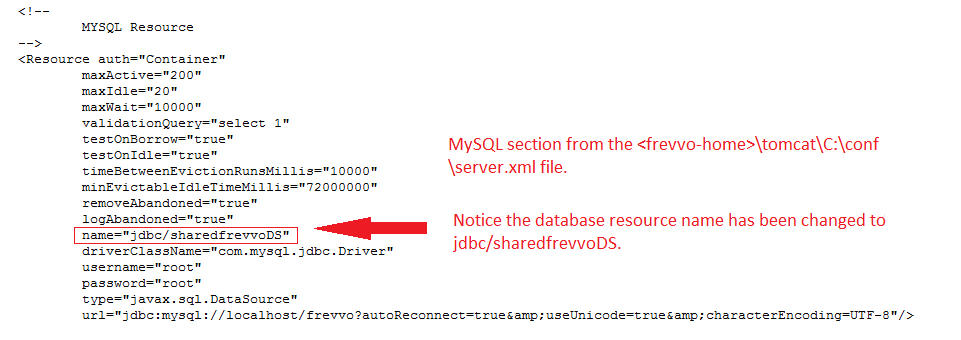
Database configuration has been removed from the <frevvo-home>\tomcat\conf\Catalina\localhost\frevvo.xml file. It is now done in the C:<frevvo-home>\tomcat\conf\server.xml file. Also, notice the database resource name has been changed to jdbc/sharedfrevvoDS. When you configure your database, make the changes to the server.xml. Do not copy configured sections from a frevvo.xml of a previous release into the server.xml file.
It is recommended practice to use a named user (schema) account with the proper privileges when connecting to Oracle databases. The built in SYSTEM user account will not work.
Configure the frevvo database
The frevvo database below must be created with UTF-8 encoding.
For your selected database type in server.xml:
- Locate the sharedfrevvoDS data source url parameter and decide on a name for the frevvo database. For the SQL Server it would look like this: "url="jdbc:sqlserver://localhost:1433;databaseName=frevvo". You can change the name "frevvo" to whatever you wish, "
- Create a UTF-8 encoded database "frevvo" (assuming you left the url parameter database name as the default) in your SQL server
- Set the sharedfrevvoDS data source url parameter to your database server. See configure the connection Url below.
Set the sharedfrevvoDS data source username and password parameters to a user that has read and write permissions to the frevvo database.
- The frevvo database setup is now complete.
Where did the SQL scripts go? The server no longer needs the SQL scripts that used to be in <frevvo installdir>\frevvo\data\sql. The server automatically creates the necessary tables at first startup.
Configure the Connection Url
Configuration of the connection Url is key to successfully connect the server to your database. Consult your DBA to assist with connection issues.
For your selected database type in server.xml:
- Set the sharedfrevvoDS data source url parameter to your database server. If
url="jdbc:sqlserver://e00sca:59377;databaseName=frevvo;"
As of SQL 2000, Microsoft SQL allows installation of multiple SQL named instances. If your SQL server was installed this way you must use the instance parameter. For example if you database instance was named xyzzy:
url="jdbc:sqlserver://e00sca:59377;databaseName=frevvo;instance=xyzzy"
2. Verify that the user and password required to connect to the frevvo database are correct.
3. Make sure that the user configured in the data sources has permissions to read and write to the frevvo database.
If you are using SQL Server, it is recommended that you append the sendStringParametersAsUnicode property with a value of false to your database connection URL. This property will improve performance. You can find more information about this property on this Microsoft website. If you do not see the property, when configuring the Connection URL to your database, add it.
url="jdbc:sqlserver://localhost:1433;databaseName=frevvo;sendStringParametersAsUnicode=false"/>
Non Standard Databases
If you are trying a different database type and do not see an example in server.xml for your database, you can create a new data source entry. Hibernate supports the following dialects however has only been certified to run with a subset of these databases. For additional dialects see Hibernate documentation. Refer to our Supported Platforms for the list of Application Servers and databases supported/certified by frevvo.
- org.hibernate.dialect.HSQLDialect
- org.hibernate.dialect.MySQL5Dialect
- org.hibernate.dialect.MySQL5InnoDBDialect
- org.hibernate.dialect.Oracle9Dialect
- org.hibernate.dialect.OracleDialect
- org.hibernate.dialect.PostgreSQLDialect
- org.hibernate.dialect.SQLServerDialect
- org.hibernate.dialect.Sybase11Dialect
UTF-8 Encoded Database
The frevvo database must be created with UTF-8 encoding. Setting the encoding depends upon the database you are using. Please consult your database documentation.
If you're using a improperly encoded database for sharedfrevvoDS you may run into one or more of the following runtime issues:
- International characters will not work correctly without the proper encoding.
- Workflows directed to a specific user may not appear on the user's task list.
MySQL UTF-8 Example
These commands will create the proper frevvo utf8 encoded database in mySql:
create database if not exists frevvo default character set "utf8" default collate "utf8_unicode_ci";
You can convert a database and/or table to UTF-8 using the MySQL configuration file or the MySQL cmd tool.
Configuration file:
[mysqld]
default-character-set=utf8
default-collation=utf8_unicode_cii
MySQL cmd tool:
ALTER DATABASE frevvo CHARACTER SET utf8 COLLATE utf8_unicode_ci;
ALTER TABLE `frevvo16089`.`formsubmission` CHARACTER SET utf8 COLLATE utf8_unicode_ci;
Configure Snapshot Isolation for SQL Server Databases
If you are using SQL Server as your Live Forms database, it is highly recommended that you turn on the READ COMMITTED SNAPSHOT setting in the database. You do not have to do this if you are using MySQL or Oracle databases because the option is turned on by default. There are two ways to turn on the option:
Using DDL (Data Definition Language) - Run the commands listed below
ALTER DATABASE <your frevvo database schema> - replace <your frevvo database schema> with the name of your frevvo database schema
SET READ_COMMITTED_SNAPSHOT ON
- Using SQL Server Management Studio: Turn on the “Is Read Committed Snapshot On” Option under database properties.
Install a JDBC Driver
database relies on the JDBC API. See the list of certified databases. If you choose a database that's not in this list you do so at your own risk.
You MUST use a JDBC4 type driver.
- The
- the HSQLDB.jar file is located in WEB-INF/lib in the frevvo.war.
the SQL Server JDBC Driver - this driver (mssql-jdbc-7.2.2.jre11.jar ) is included in the frevvo tomcat bundle in the <frevvo-home>\frevvo\tomcat\lib directory.
At this time, frevvo only supports the v7.2.2.jre11 version of the SQL Server JDBC driver. This version of the driver is included in the frevvo tomcat bundle.
- If you don't find what you need pre-installed you will need to locate a driver compatible to your database. Usually you can download your driver from the internet. Try one of these locations:
- MySQL - 8.0.x or later is recommended if you are using MySQL 5.6+
- Oracle
- If you are using Oracle12c as your database, the jdbc driver must be the version 7 ojdbc.jar which is certified for JDK 7 and 8 for the Insight Data batch process to function properly.
- If you are using Oracle 11g, continue to use the the ojdbc6 driver version 11.2.0.3+ which is certified for JDK 6, 7 and 8. Remember JDK 6 and 7 are no longer supported by frevvo.
- Once you have the driver you need, copy it to <frevvo-home>/tomcat/lib.
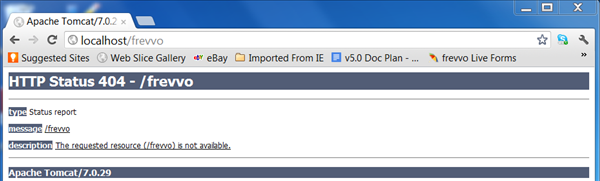
- The <frevvo-home>\tomcat\logs\frevvo.log file will report an error if you do not copy the JDBC driver to lib directory. The verbiage may differ depending on the driver and database. For example, the error for MySQL is "Cannot load JDBC driver class 'com.mysql.cj.jdbc.Driver". Starting
- It is also appropriate to copy the driver into any location that is in the CLASSPATH of your tomcat installation. Another location would be <CATALINA_HOME>/lib.
- The <frevvo-home>\tomcat\logs\frevvo.log file will report an error if you do not copy the JDBC driver to lib directory. The verbiage may differ depending on the driver and database. For example, the error for MySQL is "Cannot load JDBC driver class 'com.mysql.cj.jdbc.Driver". Starting
Users on Mac OS may see this exception:
Caused by: com.mysql.cj.exceptions.InvalidConnectionAttributeException: The server time zone value 'EDT' is unrecognized or represents more than one time zone. You must configure either the server or JDBC driver (via the serverTimezone configuration property) to use a more specifc time zone value if you want to utilize time zone support.
Customers facing this error should add the serverTimezone=EST5EDT (insert correct timezone) parameter to the jdbc url.
Transferring Your frevvo Data from HSQL to a Production Database
The bundle includes an HSQL embedded database. If you use the HSQL database during your trial period, you cannot migrate the data (user, roles, applications) automatically from HSQL to your production database. Once your production database is in place, you must manually:
- Create your production tenant.
- Use CSV Upload of Users andRoles to move your users/roles to the tenant.
- Download and upload the applications from designer user accounts in the trial database to the designer users in the new database.