This documentation is for frevvo v10.0. Not for you? Earlier documentation is available too.
DB Connector Configuration
- Former user (Deleted)
- Megan Ellis
If you are upgrading your Database Connector, follow the Upgrading the DB Connector (for frevvo-Tomcat Bundle) or Upgrading the DB Connector (for standalone) instead of the steps on this page.
frevvo only supports/certifies the Database Connector running in the Apache Tomcat container. Refer to our Supported Platforms for the list of Application Servers and databases supported/certified by frevvo.
On this page:
Configuring the Database Connector
The database connector can be installed in standalone mode or in the frevvo-tomcat in-house bundle. Depending on your installation choice, follow
- Configuring the Database Connector in the tomcat bundle, or
- Configuring the Database Connector in Standalone mode.
Configuring the Database Connector in the frevvo-tomcat bundle
These steps assume you have already installed the frevvo-tomcat bundle and the Database Connector and have verified that the connector is up and running.
- Stop frevvo. You do not have to stop the Insight Server.
Create a folder named <frevvo-home>\config i.e. c:\frevvo\config.
Create the file <frevvo-home>\config\configuration.xml. Your SQL statements will be added to this file.
Copy/Paste the follow text into configuration.xml. This skeleton defines test querysets named myStore and BIRT to get you started.
<dbconnector>
   <queryset name="myStore">
   </queryset>

   <queryset name="BIRT">
   </queryset>
</dbconnector>
Create the file <frevvo-home>\tomcat\conf\dbconnector.properties. If this file already exists you will add your database datasource properties to it.
- Copy/Paste one of the two following samples into dbconnector.properties.
Edit the frevvo.connectors.database.configuration line to be the path to your configuration.xml file.
Use this sample if all querysets use the same databasefrevvo.connectors.database.configuration=file:///C:/frevvo/config/configuration.xml dbconnector.queryset.resource-def.url=<the url to your database> dbconnector.queryset.resource-def.user=<your database username> dbconnector.queryset.resource-def.password=<your database password>
The @myStore and @BIRT in the this sample will be your queryset names in your configuration.xml
Use this sample if querysets use different databasesfrevvo.connectors.database.configuration=file:///C:/frevvo/config/configuration.xml dbconnector.queryset@myStore.resource-def.url=<the url to your database #1> dbconnector.queryset@myStore.resource-def.user=<your database username> dbconnector.queryset@myStore.resource-def.password=<your database password> dbconnector.queryset@BIRT.resource-def.url=<the url to your database #2> dbconnector.queryset@BIRT.resource-def.user=<your database username> dbconnector.queryset@BIRT.resource-def.password=<your database password>
Your Datasource Properties depend on your JDBC driver type. To see examples of Datasource Definitions,
Restart frevvo
- Browse the status url http://<host>:<port>/database/status
- Your skeleton database configuration is successful when the status returns Passed! for each queryset.
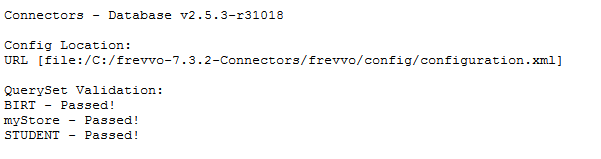
- You are now ready to define your SQL Queries.
Configuring the Database Connector in Standalone mode
These instructions assume you have already installed the Database Connector Standalone bundle and have verified that the connector up and running.
Follow these steps:
- Stop the Standalone Database Connector
Navigate to the <db-home>\database-connector-2.5.x\config directory.
Create the a file named configuration.xml.
Copy/Paste the following text into configuration.xml. This skeleton defines test querysets named myStore and BIRT to get you started.
<dbconnector>
   <queryset name="myStore">
    </queryset>

    <queryset name="BIRT">
    </queryset>

</dbconnector>
Edit <db-home>\database-connector-2.5.x\config\dbconnector.properties. The dbconnector.properties file is where you can customize database connection properties (such as server port) and configure datasource definitions.
Copy/Paste one of the two following samples under the server.port property.
Use this sample if all querysets use the same database# Customize the DbConnector here logging.file=./logs/database-connector.%d{yyyy-MM-dd}.log server.port=8081 dbconnector.queryset.resource-def.url=<the url to your database> dbconnector.queryset.resource-def.user=<your database username> dbconnector.queryset.resource-def.password=<your database password>The @myStore and @BIRT in the this sample will be your queryset names in your configuration.xml
Use this sample if querysets use different databases# Customize the DbConnector here logging.file=./logs/database-connector.%d{yyyy-MM-dd}.log server.port=8081 dbconnector.queryset@myStore.resource-def.url=<the url to your database #1> dbconnector.queryset@myStore.resource-def.user=<your database username> dbconnector.queryset@myStore.resource-def.password=<your database password> dbconnector.queryset@BIRT.resource-def.url=<the url to your database #2> dbconnector.queryset@BIRT.resource-def.user=<your database username> dbconnector.queryset@BIRT.resource-def.password=<your database password>Your Datasource Properties depend on your JDBC driver type. To see examples of Datasource Definitions,
Restart the connector using one of these methods:
- Method 1: Using java in a command window
- Navigate to <db-home>\database-connector-2.5.x .Type java -jar database.war
- Method 2: for Windows OS
Double click the <db-home>\database-connector-2.5.x\Install-Service.bat file to install the connector as a Windows service. Click the Start-DBConnector-Service.bat file to start it
The Standalone Database Connector bundle includes the files shown in the image:
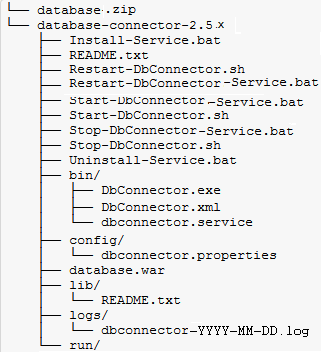
Note the files in the database-connector-2.5.x directory that are used to manage the Database Connector as services on *nix and Windows operating systems: These files should be run as an administrator.
Install-Service.bat - installs the Database Connector on a Windows system as a service named frevvo Database Connector.
Uninstall-service.bat - uninstalls the frevvo Database Connector on a Windows operating system
Start-DB Connector-Service.bat - starts the frevvo Database Connector on a Windows operating system
Start-DBConnector.sh - starts the frevvo Database Connector as a *nix console instance.
Restart-DBConnector-Service.bat - restarts the frevvo Database Connector on a Windows operating system
Restart-DBConnector.sh - restarts the frevvo Database Connector as a *nix console instance.
Stop-DBConnector-Service.bat - stops the frevvo Database Connector on a Windows operating system.
Stop-DbConnector.sh - stops the frevvo Database Connector *nix console instance.
- Method 3: for *nix OS
- Execute the DB Connector.sh shell script for Unix/Linux operating systems.
- Method 4: for Linux
- The Database Connector can also run as a service under Linux systemd
- The Database Connector can also run as a service under Linux systemd
- Method 1: Using java in a command window
Browse http://localhost:8081/database/status
Your skeleton database configuration is successful when the status returns Passed! for each queryset.
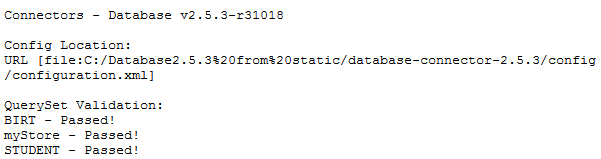
- You are now ready to define your SQL Queries.
Database Connector FAQ
What is a database URL?
A database URL is a Universal Resource Locator (URL) that specifies a particular type of database server compatible with the JDBC driver you installed. In addition you can also specify the database name to use for the connection.
The format for the database URL is database driver specific. For example, the correct format for a MySQL database is:
jdbc:mysql://[host][:port optional]/[database name]
Check with your database administrator or the documentation for your database drive for details on the correct database URL format.
Can I add other parameters to the database URL?
You can add other parameters to the URL. For example, it is recommended that you add the useServerPrepStmts=true parameter to the database connection URL if you are using MySQL as your external database. This property improves the queryset/query validation if a column or table is missing. With this parameter in place, the MySQL driver reports a warning that the table or column doesn't exist.
How do I define datasources on the container level?
If you prefer to define your datasources on the container level, the recommended approach is to define the datasource in the container and then use a resource-ref in the Database Connector properties file to reference it.
frevvo only supports/certifies the Database Connector running in the Apache Tomcat container. Refer to our Supported Platforms for the list of Application Servers and databases supported/certified by frevvo.
Using <Resource-ref> to define datasources is not supported if you are running the Database Connector in Standalone mode. Use <Resource-def> instead.
Follow these steps: The XML samples below assume a MySQL database driver. You will need to replace this sample values to match your database type. You may copy the resource definition sample from your server.xml file located in the <frevvo-home>/frevvo/tomcat/conf directory.
- Edit <frevvo-home>\tomcat\conf\Catalina\localhost\context.xml.default.
Define a <resource> as shown below. This is the format of the <resource> element in context.xml.default.
<Resource name="jdbc/mystore_ds"
	   	  auth="Container"
	   	  factory="org.apache.commons.dbcp.BasicDataSourceFactory"
	      driverClassName="com.mysql.jdbc.Driver"
	      username="YOUR database user HERE"
	      password="YOUR database password HERE"
	      type="javax.sql.DataSource"
          url="jdbc:mysql://localhost/mystore?autoconnect=true"/>
Edit frevvo\tomcat\conf\dbconnector.properties file. Verify that the frevvo.connectors.database.configuration property has been set and add the dbconnector.resource-ref.name property as shown below:
dbconnector.queryset@<queryset name>.resource-ref.name=jdbc/<name of your resource>
How do I Disable a QuerySet/Query?
When you are developing your integration, you might want to disable a particular queryset/query so you can focus on the one you are troubleshooting. QuerySets/queries can be disabled in one of two ways:
Add the enabled= attribute with a value of false to the <querySet/> or individual <query> elements in the configuration.xml file to completely disable it.
<dbconnector>
  <querySet name="BIRT" enabled="false" ...>
The same can be done by adding the enabled property with a value of false as shown below to the dbconnector.properties(standalone bundle) or dbconnector.properties (tomcat bundle).
dbconnector.querySet@<queryset name>.enabled=false
This property disables all querysets. Add it to the dbconnector.properties(standalone bundle) or dbconnector.properties (tomcat bundle).
dbconnector.querySet.enabled=false
You will see the disabled status when you browse the status URL for the Database connector - http://<server:host>/database/status. Browsing a disabled query displays the message shown below:
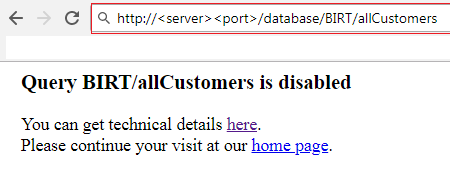
Can the Database Connector Serve CSV Files?
Yes. One option is to use the CsvJDBC driver. A limitation of this approach is that it only supports SELECTs.
1. Download the JDBC driver from here.
2. Place the driver in the frevvo/tomcat/lib folder.
3. Add the following to your configuration.xml. (See this section for details.) Replace the queryset name and query name with your csv name.
<dbconnector>
	<queryset name="bikes">
		<resource-def>
			<url>jdbc:relique:csv:${catalina.base}/db?suppressHeaders=true</url>
			<driver>org.relique.jdbc.csv.CsvDriver</driver>
		</resource-def>
 		<query name="selectBikes">
			<retrieve>
				<statement>
					SELECT * FROM bikes
				</statement>
			</retrieve>
		</query>
	</queryset>
</dbconnector>
4. Add the csv to frevvo/tomcat/db/. Here is an example (bikes.csv) that you can download and test with above configuration.