frevvo v11.1 is no longer supported. Please visit the Documentation Directory for our current Cloud Release and other versions.
Manage Tenants
- Megan Ellis
frevvo is a multi-tenant application. Tenants allow you to segregate groups of users and roles. Users from one tenant cannot access users in any other tenant. Note: this does not apply to public forms/workflows which do not require login access to a tenant.
The frevvo In-house superuser admin can create as many tenants on your form server as needed. Once the superuser admin creates the tenant, the tenant admin user can then login to manage the tenant, configure LDAP, add users & roles, etc. See the Admin Home Page for differences between the superuser admin and tenant admin.
frevvo trial tenants in the cloud are initially configured with the frevvo Default security Manager. Once you have purchased your frevvo license, you can switch the Security Manager of your tenant and retain existing forms/workflows, users, roles and submissions.
Tenants using the Default Security Manager can be migrated to:
- Default Security Manager → LDAP
- Default Security Manager → SAML
- Default Security Manager → Azure SAML
Tenants using the LDAP Security Manager can migrate to:
- LDAP → SAML
- LDAP → Azure SAML
Contact us to purchase or change your security manager.
On this page:
Manage Tenants
The superuser for frevvo in-house customers can add new tenants to your frevvo server using the Manage Tenants page.
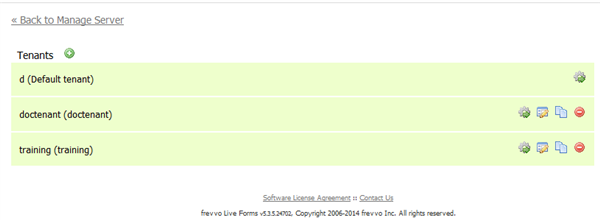
- Click
 to add a new tenant.
 - Click
 to display the Manage Tenant page. You use the links on this page to edit the tenant information and manage the tenant's roles, users, form and control categories, and production forms.
 - Click
 to edit the tenant information. This link displays the same page as the Edit Tenant link on the Manage Tenant page.
 - Click
 to make a copy of the tenant.
 - Click
 to remove the tenant from the server.
You cannot remove or copy the d (Default tenant).
Add Tenant
The superuser for in-house customers can use the Tenant page to add a new frevvo tenant . We recommend using lower case for the tenant name as the tenant name becomes part of your user's login names which are case sensitive.
To display the Tenant page,
- Login as the superuser admin. Enter admin@d as the userID and admin as the password (if you did not change it). Click Manage Tenants.

- Click the plus icon to add a new tenant.
- Fill in the fields with the information for your new tenant.
- Click the Submit button to save.

Here is a brief explanation of the fields:
Security Manager Class: Select a Security Manager Option from the following choices:

- Frevvo Default Security Manager (FSM) - frevvo is responsible for authentication/authorization and managing users/roles. This is the default option. Your tenant will be created with this security manager if no other choice is selected.
- LDAP Active Directory Security Manager (LDAPSM) - The user is authenticated outside frevvo. Typically, SSO or frevvo performs the authentication using LDAP directly.
- SAML Security Manager - This security manager allows the exchange of authentication and authorization data between an identity provider of your choice (ex:Shiboleth) and a service provider (frevvo). SSO is supported. Although this security manager can be used on-premise it is primarily meant for cloud tenants who use LDAP but do not want to expose it over the internet.
- Azure SAML Security Manager - Allows the on-premises AD to be exposed to the cloud via synchronization with Azure AD. Uses the graph API to access users and groups from AD. SAML is used for authentication only, providing single sign on.
- Delegating Security Manager - used for OEM implementations of frevvo
Tenant ID - Enter the tenant Id in this field - The tenant id can contain characters, numbers, dot(.), hyphen (-) and the underscore. It cannot start with a number. A common practice is to use your domain name for the tenant id.
- Tenant Name - Enter the name of the new tenant.
- Tenant Description - Enter a description for the new tenant.
- Password Strength - This feature only applies to the Default Security Manager. Tenant admins can set password strength requirements on the Create Tenant or Edit Tenant screens. There are four password strength options (Fair, Good, Strong, Very Strong) or the field can be left blank if you do not want to enforce password strength. Leaving this blank will still require minimum password length of 8 characters. When you change the password strength requirement, users whose passwords do not comply will automatically be prompted to change their password on their next login.
- Max Concurrent Users - Leave this field blank if you do not want to set a maximum number of concurrent users. Concurrent Users are users that are logged into frevvo simultaneously. You will not see this field if your tenant is configured for the LDAP, SAML or AzureSecurity Managers.
- Admin User Id - This is the tenant admin id. It can contain characters, numbers and the underscore. It cannot start with a number. The maximum length is 16 characters. This account is used as the built-in admin if you are using the LDAP, SAML or AzureSecurity Managers.
- Admin User Password - This is the tenant admin password. Notice the text will appear as bullets as you type.
- Reenter the Admin User Password - Reenter the tenant admin password. frevvo will display an error message, "Invalid Value" if what you type in this field does not match the contents of the Admin User Password field. This is one way to change the password for the built-in admin if you are using the LDAP, SAML or Azure Security Managers.
- Change password on next login - Tenant Admins can expire passwords by checking this field. The tenant admin will be prompted to change their password the next time they login.
- Admin User Email Address - Enter the Email Address for the user id specified in the Admin User Id (built-in admin) field. The tenant admin receives an email with a link if they use the frevvo Forget Password? feature to reset their password.
Set Up the Business Calendar for your tenant
The superuser or tenant admin can set up the Business Calendar for your tenant. frevvo will then use the calendar information when calculating an escalation deadline for workflow steps and to determine the date/time for notification/reassign emails if they are configured. A tenant can only have one Business Calendar.
In the Business Calendar section of the Add/Edit Tenant screen:
- Select the timezone for your tenant from the dropdown. Escalation emails will display dates/times based on the selected timezone.
- Specify the working hours by entering a value in the Day Starts At and Day Ends At fields. The start and end hours are based on a 24 hr clock. Valid values are 0 - 23.
- Check the weekend days for your tenant.
- List the company holidays for the current year. You can specify holidays for future years as well.
The Business Calendar makes it very simple to configure workflow escalations based on a 5 - day work week. Once the calendar is set up, simply check the Business Calendar checkbox on the escalation condition in your workflow.

It is no longer necessary to use a rule to Calculate a Date based on a five day work week.
Configure HTTP Authorization Credentials
frevvo offers a user interface to specify credentials to external secure web services that are accessed by the forms/workflows in your tenant. For example, if you have a rule that connects to a web service or a Form/Doc action that posts to a web service that is not publicly accessible, credentials can be configured for the services in each of your tenants.
The specification of http credentials for in-house customers was previously supported globally and configured in the httpclient-auth.properties file. This method is no longer used. In-house customers using this file for HTTP authentication should read the Migration Considerations before upgrading.
To configure http security credentials at the tenant level, follow these steps:
- The Http Auth Credentials section is at the bottom of the Edit/Add tenant screens and is initially collapsed. Click the
 icon to expand it.
 - Enter the scheme from the dropdown. The admin may enter multiple credentials by clicking the icon. Each should be for a unique scheme/host/port/realm. The supported options are:
Basic - a common HTTP Authentication protocol that assumes that client credentials consist of a username and a password where the latter is a secret known only to you and the server
NTLM - a Windows network authentication protocol that allows a client to prove its identity without sending a password to the server.
Scheme, host, user name and password are required.
Port is optional and may be left blank. Either blank or -1 equates to any port and the system will alter blank to be -1.
All fields are specified in plain text and not encoded in any way.
Domain is only generally used for NTLM.

Configuring the SharePoint Connector
Store submissions and metadata on a registered SharePoint website using the frevvo SharePoint Connector and wizard. The configuration information is discussed in the SharePoint Connector topic
Configuring the LDAP/Active Directory Security Manager
Creating/editing the LDAP tenant is performed by the superuser (on-premise) or the tenant admin (cloud). Refer to this documentation for configuration details and here for some troubleshooting tips.
Configuring the SAML Security Manager
Creating/editing the SAML tenant is performed by the superuser (on-premise) or the tenant admin (cloud). Refer to the SAML Security Manager topic for the details.
Configuring the Azure SAML Security Manager
Creating/editing the SAML tenant is performed by the superuser (on-premise) or the tenant admin (cloud). Refer to Configuring the Azure SAML Security Manager for the details.
Edit Tenant
A tenant admin or a superuser admin can use the Tenant page to configure or edit information about a tenant.
To display the Tenant page:
- If logged in as a tenant admin click Edit Tenant.
- If logged in as a superuser admin click Manage Tenants and then click the
 cog icon for the tenant you want to edit.
Note that you cannot change the Tenant Id, although you can change the Name and Description.
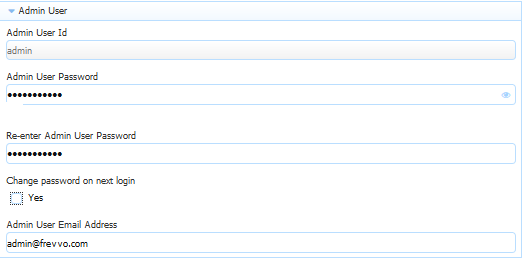
Admin User
- Admin User Id - This is the tenant admin id. It can contain characters, numbers and the underscore. It cannot start with a number. The maximum length is 16 characters. This account is used as the built-in admin if you are using the LDAP, SAML or Azure Security Managers.
- Admin User Password - This is the tenant admin password. Notice the text will appear as bullets as you type.
- Reenter the Admin User Password - Reenter the tenant admin password. frevvo will display an error message, "Invalid Value" if what you type in this field does not match the contents of the Admin User Password field. This is one way to change the password for the built-in admin if you are using the LDAP, SAML or Azure Security Managers.
- Change password on next login - Tenant Admins can expire passwords by checking this field. The tenant admin will be prompted to change their password the next time they login.
- Enter the Email Address for the user id specified in the Admin User Id (built-in admin) field. The tenant admin receives an email with a link if they use the frevvoForget Password? feature to reset their password.
Built-in admin for LDAP, Azure and SAML Security Manager tenants
A Tenant admin can login directly to frevvo or login with a user id who has been given tenant admin permissions in your Active Directory. Tenants using the LDAP(s) Security Manager now have the ability to configure a built-in admin account. This was not possible for this Security Manager in previous releases.
When you create a new tenant, you are prompted to set up a tenant admin user id, password and email address. This tenant admin does not authenticate via your LDAP IDP. It only exists in frevvo. If you experience an issue with your LDAP configuration such that you can't login as an Active Directory authenticated user, use the built-in admin to login to your tenant as a tenant admin in order to fix your configuration issue. The built-in admin is able to access the frevvo tenant admin functions if your LDAP Server should become inaccessible. Only one built-in tenant admin account is supported.

Browse this URL to login as the built-in admin: <base_URL>/frevvo/web/admin/login. When specified, frevvo will prepend the base URL to the URLs in your Form/Document Actions. The <base_URL> is typically http(s)://<your servername>:<port>.
You must use the admin specific URL - <base-url>/frevvo/web/admin/login - to login as the built-in admin.
Non admin users can also login using the admin specific URL.
If your tenant originally used the Default Security Manager and then you changed to the LDAP, Azure or SAML Security Manager, this tenant admin account has already been setup. If you have forgotten the password, you can change it by :
Logging as your authenticated LDAP tenant admin. Click the Edit Tenant link. The Admin User information is displayed.
If logging in as the authenticated LDAP tenant admin is not possible, browse this admin specific URL - <base-url>/frevvo/web/admin/login. Enter the built-in admin userId. Click Forgot Password? Once you have changed the password, browse the admin specific URL again and login with the tenant admin user id and the new password. If you need to change the password again, or make changes to your tenant, the built-in admin password can be changed on this screen.
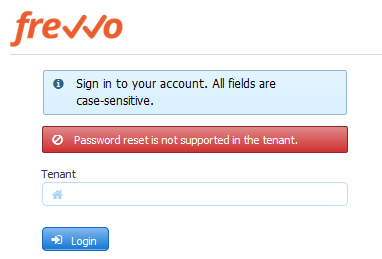
The message "Password reset is not supported in the tenant" displays if any other user clicks on the 'Forgot Password?' link after browsing the admin-specific URL:
Refer to the Configuring the LDAP Security Manager for In-house, Configuring LDAP Security Manager LDAP(s) for Cloud Tenants, SAML Security Manager, and Azure SAML Security Manager topics for more configuration information.
Password Strength
This feature only applies to the Default Security Manager. Tenant admins can set password strength requirements on the Create Tenant or Edit Tenant screens. There are four password strength options (Fair, Good, Strong, Very Strong) or the field can be left blank if you do not want to enforce password strength. Leaving this blank will still require a minimum password length of 8 characters. When you change the password strength requirement, users whose passwords do not comply will automatically be prompted to change their password on their next login.

Definitions of Password Strength:
- none - uses system default, enforces a minimum password of 8 characters
- Fair - very guessable: protection from throttled online attacks. (guesses < 10^6) Strength meter will indicate "Very weak."
- Good - somewhat guessable: protection from unthrottled online attacks. (guesses < 10^8) Strength meter will indicate "Weak."
- Strong - safely unguessable: moderate protection from offline slow-hash scenario. (guesses < 10^10)
- Very Strong - very unguessable: strong protection from offline slow-hash scenario. (guesses >= 10^10)
A user creating or resetting their password will be required to meet the password strength specified by the tenant admin. Password strength is indicated as the user types by a Password Strength Meter visible below the entry. There are no specific length or character requirements, but the meter will detect the strength of the password based on use of uncommon words or phrases and unpredictable use of capitalization, numbers and special characters. Helpful suggestions appear to prompt the user towards a stronger password. Password length is limited to 100 characters and an error message will appear if user attempts to enter more than 100 characters. Users cannot use their old password or a temporary password as the new password. Here are screenshots of what a user might see if the Tenant Password Strength is set to "Strong." Strong and Very Strong passwords use uncommon words or phrases and unpredictable use of capitalization, numbers and special characters.
Password strength will not apply when the server admin (superuser) creates a user in any tenant and sets their password.
Email Address
The email address entered in this section is used as the default from email address for email notifications and doc action emails if not customized at the form/workflow/step level. If you want to setup the email address with a user friendly name, enter the text in the Display Name field. The Task Notification, Document Action and Activity Document action email wizards have a From: address field where you can customize using a valid email address. The values in these fields overrides the address entered on the Edit Tenant screen.
Cloud Customers - When you change the "from" email address, your email provider may inadvertently mark emails from frevvo as spam or block delivery. This is a security feature of some email providers that blocks emails that might be trying to maliciously impersonate your internal email addresses. You/your network expert must follow the steps in this documentation to whitelist emails from frevvo.
Refer to the Email configuration or integration topics for more information.
Session Timeout
A user designing a form, viewing their task list, or using a form to enter values and submit has a certain number of minutes to complete the activity. This time limit is called the Session Timeout. By default the session will expire after 30 minutes of inactivity. When the session expires a designer user will have to re-login to frevvo to continue designing forms and users filling forms will have to get new form instance and re-enter the values. The tenant admin can override the default session timeout with the value that is entered into the Session Timeout field.
Default Portal
The tenant admin can set a default portal by selecting from the drop-down menu of portals that have been created. Selecting a default portal will cause task notification links to direct the user to the task and/or Task List rendered in the default portal. If no default portal is selected, task notifications direct the user to the task/Task List in the tenant.
Max Concurrent Users
The Max Concurrent Users field only appears if you are logged in as a superuser admin. This field enables you to restrict the number of users who can simultaneously login to a particular tenant. For example if you have purchased and installed a 20 user license key and want to set tenant A to use 5 and tenant B to use 15, setup that configuration here. See Concurrent Users for more information.
Max Users is subject to your license.
Deployment State
The Deployment State lets you toggle the default deployment state of your form between two states: PRODUCTION and DEVELOPMENT. When a form is in development state it contains a watermark. If you have a frevvo unlimited user license key you may want all the forms created by the designer to automatically be deployed for production with no water mark. Deployment to production is not available on Trial Accounts.
See also the deployment form property.
Anonymous Signup
Anonymous signup lets you publish a registration Url for your tenant so people can signup and create a user account in your tenant themselves. In the Edit Tenant form, check the anonymous signup property and then select the default roles you want them to have when they signup. You can click the "+" to add multiple roles. If you select the designer role, these new users will have permission to design forms and workflows.

Then publish the registration Url:
https://www.frevvo.com/frevvo/web/tn/<your tenant name>/register?edit=true
At this Url people will see a signup form.


When they submit this form they'll be notified via email to activate their account. Until they activate via the email their account will remain disabled.


Now this person has a user account on your tenant and can login. If you gave them the frevvo designer role they will also be able to create forms and workflows. If not, when they login, they will see their task list as shown below.

Tenants configured with an LDAP or SAML Security Manager do not display the Anonymous Signup checkbox as this feature is not applicable for an LDAP or SAML tenant.
Change the tenant Security Manager
If you are planning on changing the Security Manager from the Default Security Manager to LDAP(s), SAML or Azure SAML, and you want to preserve Projects/Forms/Workflows developed in your trial/starter frevvo tenant, here's what we recommend:
- Download the Projects/Forms/Workflows that you want to preserve to your desktop as a backup BEFORE changing the Security Manager.
- frevvo customers should be aware that changing the Security Manager of your tenant is a ONE-WAY operation. Once you click the Change button, you cannot revert back to the original security manager.
The following Security Manager changes can be made by clicking the Change button and making a selection from the dropdown. Cloud customers should contact us to purchase or change your plan.
- Default Security Manager → LDAP
- Default Security Manager → SAML
- Default Security Manager → Azure SAML
- LDAP → SAML
- LDAP → Azure SAML
Click the  button to see details about a field.
Be aware that changing the Security Manager of your tenant is a ONE-WAY operation. Once completed, you CANNOT change it back to the original security manager.
Edit LDAP Properties
If you are editing a tenant using the LDAP/Active Directory Security Manager configured LDAP properties will display. These properties can be modified using this screen.

Edit SAML Properties
If you are editing a tenant using the SAML Secuirty Manager, configured metadata and attribute mappings will display. These values can be modified using this screen.

Remember, if you check the Authentication Only checkbox, only the User Id field displays for mapping.
Edit Azure SAML Properties
If you are editing a tenant using the Azure SAML Security Manager, configured metadata and attribute mappings will display. These values can be modified using this screen.

Authentication Only is checked so only the field for User Id mapping is displayed.
Edit the Business Calendar
Changes to the Business Calendar can be made in the Business Calendar section:
Edit HTTP Authentication Credentials
Changes to the HTTP Authentication Credentials can be made by expanding the section:

Edit the SharePoint Configuration
Make changes to the SharePoint Connector in this section.

Click Submit to save your changes. The message "Tenant updated successfully" will display.
Tenant Setup
To setup your tenant, first login to your new tenant as the tenant admin. The tenant admin can add users to the tenant. You need to add at least one designer user in order to begin creating forms.
We strongly recommend that you do not use the admin user to create your own forms. You can create users and roles in your new tenant for that purpose.
- Click the Manage Roles link.
- You will see several pre-created roles: frevvo.Designer, frevvo.Editor, frevvo.Publisher, frevvo.ReadOnly.
- Click the icon, fill in the form and submit it to create new roles e.g. Employee or Manager.
- Click the Back to Manage Tenant link.
- Next click the Manage Users link.
- For frevvo In-house you will see a single user – the administrative user you defined when you created the tenant. Note that you will have to click the link to display All users. By default, only users beginning with the later A are displayed. For frevvo Online you will see two users – the administrative user and the designer username you specified when you signed up for your trial SaaS account.
- To create a new user with permissions to create forms, click the icon, fill in the form and select the role frevvo.designer. If you do not select this role then this new user will not be able to create forms but will only be able to use forms created by others.
- The new user will be created. Create as many users and assign them roles as needed.
- Logout of the tenant admin account and login as one of the newly created users with the frevvo.Designer role and start building forms and workflows.
- Note that you must login using either the syntax: userid@tenant for the user name. For example, if the newly created tenant was named example.com then all users in that tenant must login using the ID: user@example.com. If you prefer to enter the username and tenant name in their own login page input fields, the configuration parameter, frevvo.login.show.tenant, can be modified to display the tenant name input field.
Tenant Configuration
A tenant admin can view all the configuration properties that apply to their tenant. Some of these properties can be modified by the tenant admin in the Edit Tenant page. Others can only be changed by the superuser admin.
