This documentation is for frevvo v10.0. Not for you? Earlier documentation is available too.
Multi Language Support
- Megan Ellis
- Former user (Deleted)
The internationalization feature enables you to easily localize your forms for target audiences that vary in culture, region and language. frevvo supports all ISO 639-2 languages worldwide including RTL (right-to-left) languages. The list of available languages and locale codes can be AddingLocales in your instance of frevvo (In-house only). Translations use UTF-8 encoding by default but you may also upload ISO 8859-1 (Unicode) strings.
On this page:
Locale Handling
frevvo supports localization from the browser's locale setting. frevvo will recognize the browser locale and alter displays and input formats as well as language according to the user's setting. Setting this preference is browser specific. Refer to this website for information about language preferences and how to change those in a number of popular browsers. Here is an example using the Firefox browser:
To change your language preferences in the Firefox browser:
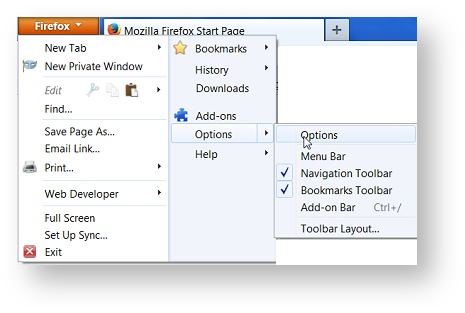
- Click on the File menu, then select Options
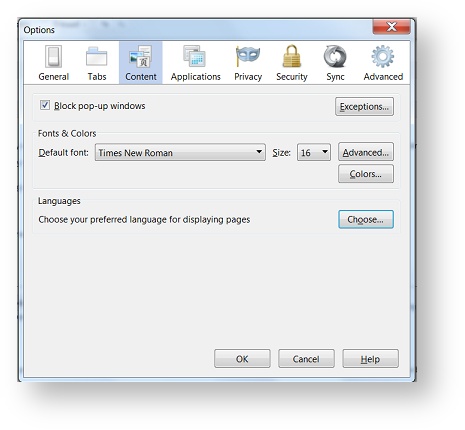
- Click the Content tab and then click the Choose button in the Language section.
- Click on the dropdown arrow to select the preferred language from a long list of choices.
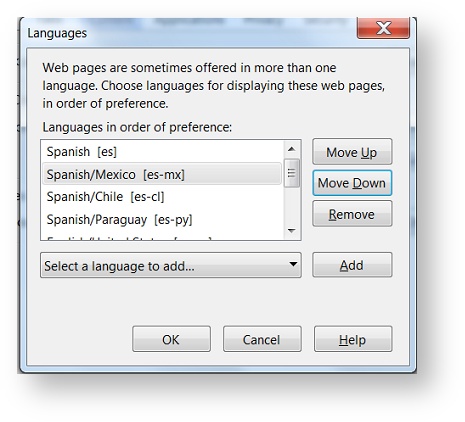
- Click the Add button to add the selection to the list and then use the Move Up and Move Down buttons to modify the order of preference. Click OK to save your selections.
You can select a general language code or a language/country code. The image above shows the choices for Spanish, Spanish/Mexico, Spanish/Chile and Spanish/Paraguay which appear as choices in the Firefox Language list. Notice the list of languages in the Firefox browser uses the ISO 639-1 two character language codes and two character country codes for most of the choices. This may not be the case for other browsers.
Locale URL Parameter
The browser locale may be overridden using the special frevvo locale url parameter. This is often very useful for testing your language specific localizations. The locale parameter is of the form ISO_639_2_CODE | ISO_639_1_CODE [ _ISO_3166_1_CODE ] - where:
- ISO 639-2 Code - The 3-letter ISO 639-2 languages code or ISO 639-1 Code - The 2-letter ISO 639-1 languages code. One or the other is required.
- ISO 3166-1 Code - The 2 letter ISO 3166 alpha 2 country code. This is Optional.
http://localhost:8082/frevvo/web/tn/mycompany.com/user/tom/app/_N4cF4ZuwEeCwk5wyBHqHrQ/formtype/_iwzJsHFqEeOH4PrevQRrog/popupform?locale=spa
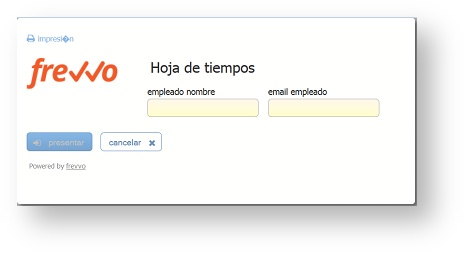
There is a built-in locale method in frevvo that you can use in a Business Rule. This method returns the locale from the browser URL.
Translating Your Form
You can easily localize any form by clicking  in the form's Action Menu on the Forms & Workflows Home Page. This opens the Locale Home Page for that form. The default locale is the original language you used in the form designer. Each new locale you create will appear on this page. In the example below this form was translated to Spanish.
The steps below describe the process of creating, testing and using a Spanish locale translation for a form named Travel Request Form.
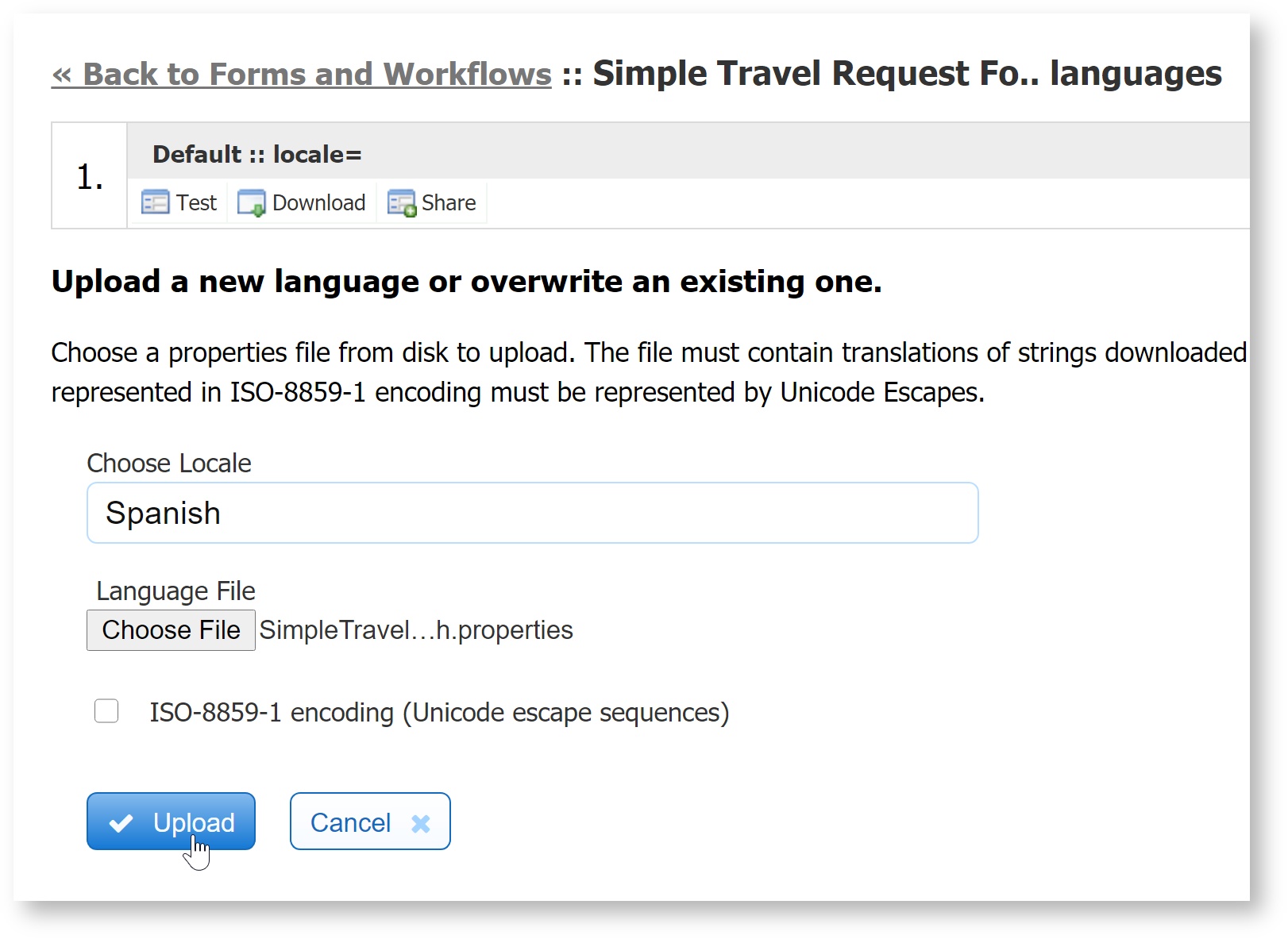
Download and Translate
- Click the down
 icon to download the default locale. Save the file named TravelRequestForm_default.properties to your disk
 - Rename this file to your locale language. Though this is not required it is helpful so you will later know which translation this file contains. In this example we renamed the file to: TravelRequestForm_spanish.properties
- Edit TravelRequestForm_spanish.properties in a simple editor like Wordpad on Windows
Here is an example locale properties translation file. This forms contains several controls labeled in English. Also you will always see the labels for the submit button and the save, load, and print icons. These can be localized too. In this example only the field labels were translated.
# Default strings for formtype: Travel Request Form
# Note that spaces in keys must be properly escaped with a '\'
# Generated on: Wed Jul 15 21:49:45 EDT 2009
Buiness\ Purpose=Negocio Propósito
Car\ class="Coche" Clase
Departure\ Date=Salida Fecha
Departure\ Time=Salida Tiempo
EMail\ Address=Correo Electrónico
Submit=
load=
print=
save=
You will see a line for every control label in your form, message control text, hint, help, etc... in the format:
<Text String>=
Add translations for each text string:
<Text String>=<Text String in Spanish>
For example:
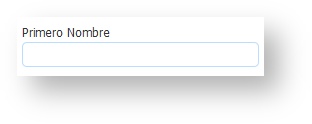
First\ Name=Primero Nombre
- Notice that the strings on the left side of the '=' have spaces escaped with the '\' character. This is needed so do not remove that. The escape character is not needed on the right side of the '='. The example above correctly has "First\ Name" on the left and "Primero Nombre" on the right.
- If you have a label that contains a colon, it must be escaped in the in the default translation files. Newly downloaded default translation files properly escape a colon with a '\'. Translation files with strings containing colons will have to be re-uploaded with the colon properly escaped.
You may find some strings in the default properties file that are not applicable to your form. Here are a few example strings that are only applicable if you're using the save/load feature, workflows feature or Electronic Signatures.
Save\ failed.\ Status=
Save\ successful=
Save\ this\ form=
Saving=
Section\ A=
Sign\ this\ section=
load=
save=
Text strings inside of controls, such as the Add Files text in the Upload control are translated using these files.
Translation Considerations
Some browsers have problems with apostrophe characters. To ensure that your translations are ok on all browsers you should use the html escape character in place of the apostrophe. Refer to this additional information describing HTML Reserved Characters.
# If this does not work in your browser:
Initializing\ form=l'initialisation de la forme
# Instead use the html apostrophe escape sequence like this
Initializing\ form=l'initialisation de la forme
- Check the 'Save Value' property for Message controls that you will want to translate.
- Messages formatted in HTML that contain new line characters in the text may not translate properly. For Example, the Text "Trip Itinerary <br/> Please Complete" in a message control to label the Trip Itinerary section of the Travel Request form will appear on the screen to have a new line in it. New Lines are ignored by HTML. Do not use new lines in forms that require localization.
Use English alphabet characters only when naming controls. For example, controls named with ó as in Póliza may cause issues when the control is used in a business rule and with submission data.
- The frevvo Preview function displays in the default locale. This is as designed. Go to the existing internationalize page to test the use mode form in the target locale/language.
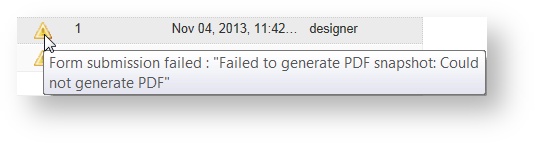
- Be careful when internationalizing markup. Do not assume that the string property name is valid markup. For Example: Let's say you had a field called FirstName in your form with this styling applied to the label: <span style="color:red;font-weight:bold;">FirstName</span>. The default strings properties file shows the property name as: <span\ style"color:red;font-weight:bold;">FirstName</span>. It is missing the '=' after style. This is intentionally stripped out because otherwise if it was left in, the = would be interpreted as the end of the property name. Adding <span style="color:red;font-weight:bold;">Primero Nombre</span> to the right side of the "=" sign, in this case, will translate this label successfully. If you see the error message " Failed to generate PDF snapshot: Could not generate PDF" check the markup in your translation files.
- Buttons in the frevvo UI, such as "Set" in the Visual Rule Builder or "Log In" in the Form/Flow Properties Document Action tab, may not resize to fit translated text that has more characters than original text. In this scenario, consider using a different label or abbreviating to ensure text fits neatly.
- Translate the string "You can't leave this empty" to show an error message if data is not entered into a required field. See the Error Message property for more information.
Upload and Test
Upload your translation file.
Choose the locale from the dropdown. In this example we choose Spanish. Note the list of available locales is configured by your frevvo system administrator (In-house only).
Creole, Hatian (Creole) and Somali.locale options have been added to this dropdown in the frevvo Cloud in a subsequent upgrade.
- Browse to your translation file - TravelRequestForm_spanish.properties on disk
- Click the upload button. You will see the new locale appear in the list above. In this case named Spanish::locale=spa
- Click the test
 icon to view the form with your translation to this new language.
The important point to note is that the &locale=spa URL parameter is directing the frevvo server to translate your form into Spanish. The test button and the  share button here on the Locale Home Page do that for you automatically. The test & share buttons on the Forms and Workflows Home Page do not set the locale URL parameter and thus revert to the browser's default locale.
When a form is used in production your end users will most likely have their browser locale set to their language of choice and the form will automatically translate to their language. Otherwise your web site will have to append the locale URL parameter onto your form's URL. Appending the locale URL parameter is usually done only for testing your translations.
Translations use UTF-8 encoding by default but you may also upload ISO 8859-1 (Unicode) strings. If you are using Unicode, check the ISO checkbox above the upload button.
Error message strings that the designer adds to a form using the error message property are translated using these uploaded translation files. The translation of frevvo ServerCustomization is done in the translation file located in the <frevvo-home>/tomcat/webapps/frevvo directory.
If you click the test button you'll see the URL with &locale=ger and you'll see your form translated to your german strings. And if you manually change the URL to &locale=de_at you will still see your german strings. frevvo falls back to the single german translation file.
Updating
To update an existing locale translation, edit the downloaded .properties file and re-upload it choosing the same locale name from the Choose Locale dropdown. This will replace the existing translation with the new translation.
Using
frevvo will recognize the browser locale and alter displays and input formats as well as language according to the user's browser setting. Refer to browser LocaleHandling for the details. You can override the browser's locale setting via the form's locale URL parameter which is typically only done for testing your translations. For example to render the form in Spanish rather than the default browser locale, add &locale=spa to the form Url. The test button and the  share button on the Locale Home Page do that for you automatically. The test & share buttons on the Forms Home Page do not set the locale parameter and thus use the browser's default locale setting.
Server Customization
frevvo In-house supports the ability to customize runtime and design time strings and add additional locales and RTL languages. To make any of these changes to your In-house frevvo server you must follow these steps:
- Stop the frevvo server
- Open the directory <frevvo-home>/tomcat/webapps/frevvo.
- Copy the /WEB-INF/data directory to a temporary location.
- Modify the files in /WEB-INF/data as described in the topics Adding Locales, Runtime Strings and Design-Time Strings below. These files contain all of the strings that have been externalized as well as the list of supported locales and directions.
- Replace the /WEB-INF/data directory with your modified version.
- Re-start your frevvo server.
Adding Locales
To add new locale codes to the Choose Locale dropdown and add/change which locales are right to left languages, update these two properties files located in the /Web-INF/data/users directory in the <frevvo-home>/tomcat/webapps/frevvo directory
- /WEB-INF/data/users/locale.directions - add/remove locale codes to this file that need to be displayed in rtl format
- /WEB-INF/data/users/locales.properties - add/remove locale codes here from the Choose Locale dropdown - when adding locales ensure that strings are unique and conform to ISO 639-2 (three character code) standards
Refer to the steps above under Server Customization for the instructions to replace the /WEB-INF/data directory.
Creating Runtime and Design-Time Translations
Runtime strings such as those found when a user logs in to access their task list, the login page, access denied messages, etc and Design-time strings such as those found in the palette controls, wizards, built-in error messages etc. are localized in the default file in the WEB-INF/data/locale directory.
Follow these steps:
- Refer to steps 1 and 2 above under ServerCustomization, then...
- Find the file named "default" located in /WEB-INF/data/locales. This file contains all of the runtime and designer strings that have been externalized. Notice there are partially completed Chinese and German sample translation files provided in this directory as well.
Copy the file "default" to a new file named using the ISO 639-2 three character or the the ISO 639-1 two character language codes .For example, the German translation file can be called ger or de, for English you can use eng or en. The Portuguese translation file can be named por or pt and the Chinese translation file an be chi or zh.
Translation files can also be named to specify a country code. In this case you must name the file using this format: <language code>_<country code>. For Example, let's say the Firefox browser is set for de-at (German/Austria). The translation file in the frevvo Web_INF/data/locales directory MUST be named de_AT. The de represents the german language, followed by the underscore followed by a capitol AT which is the country code for Austria. These file names are case sensitive.
There are several files for specific areas of the application. The names of these files indicate the area for which the file contains externalized text strings:
form-designer-properties
flow-designer-properties
flow-designer-step-properties
rule-builder (includes javascript rule validation hints)
frevvo-ui (currently covers the template install dialog)
Pre-pended the locale onto the file. For example for french, "form-designer-properties" becomes "fr-form-designer-properties". All 6 files are required for each locale in order for this to work properly. For example for french (fr), you must place the following files into WEB-INF/data/locales, even if not all of them are translated:
fr
fr-form-designer-properties
fr-flow-designer-properties
fr-flow-designer-step-properties
fr-rule-builder
fr-frevvo-ui
- Edit the new language file and add your translations.
- Refer back to steps 4 - 6 under ServerCustomization for the instructions to complete.
Here is a section of the chi (Chinese) translation file with translations for the palette controls in the designer. This file is included in the frevvo directory.
# Default strings in the frevvo UI # Form designer Text=他饿å°ä»– TextArea=他饿å°ä»–啊人饿啊 Date=的啊他饿 Time=他没饿 Date/Time=的啊他饿ï¼ä»–没饿 EMail=饿没啊一了 Money=没哦年饿有 Phone=批和哦年饿 Quantity=去哦哦年他哦他有 Number=年哦没ä¸é¥¿äºº BooleanCheckbox=ä»–ï¼å‘ Image=哦没啊个饿 Video=我哦的饿哦 Submit=是哦ä¸æ²¡å“¦ä»– Cancel=æ‰å•Šå¹´æ‰é¥¿äº† Dropdown=的人哦批的哦我年 Radio=人啊的哦批 Checkbox=æ‰å’Œé¥¿æ‰å¯ä¸å“¦å° Section=是饿æ‰ä»–哦哦年 Repeat=人饿批饿啊他 Tabs=ä»–å•Šä¸æ˜¯ Tab=ä»–å•Šä¸ Panel=批啊年饿了 Table=ä»–å•Šä¸äº†é¥¿ Col=æ‰å“¦äº† Message=没饿是是啊个饿 Link=äº†å“¦å¹´å¯ Trigger=他人哦个个饿人 Upload=哦批了哦啊的
Setting the Firefox browser language to Chinese displays the designer palette controls as shown:
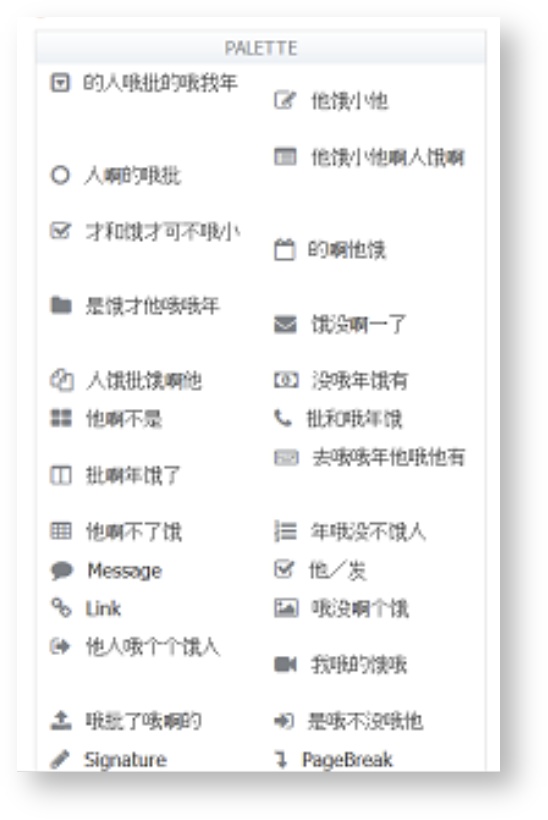
frevvo will detect the language setting of the browser and search for a corresponding ISO named translation file in the WEB-INF/data/locale directory . If a translation file exists, the designer and server-wide runtime strings display with the translations specified in this file. If the translation file does not exist, the designer and server wide runtime strings display in English - the language of the default translation file. If a locale specific file does not contain a particular property or string, then the English translation in the default file is used.
When you first examine the locale directory, you will notice a sample translation file named ger (German). Let's say you copy/modify the default translation file to make a second file for German named with the ISO 639-1 two character code - de. Then you create/modify another German translation file and name it de_AT for German/Austria.
Select German/Austria (de-at) as the language in the Firefox browser and log into frevvo as a designer user. The designer displays the translations from the de_AT file. If thee de_AT translation file was not present in the WEB-INF/data/locale directory, the designer and server-wide runtime strings display the translations specified in the ger (German) file. If the ger file was not present in the locale directory, the translations in the default file (English) would be used.
To display the designer and server-wide runtime strings using the translations from the de (German) file, you would have to change the language in the browser to German (de).
ISO 8559-1 Unicode Characters
There are two options for the runtime and design-time translation strings.
- UTF-8 encoded language files named with ISO language codes without any extension. Examples would be spa, ger, de, es, de_AT etc
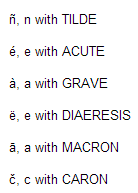
- Unicode versions using the same name but with an extension of .unicode. For example, the French unicode language file would be named fre.unicode. This file must contain the unicode equivalent for any international characters that cannot be properly represented in the UTF-8 language file. Some examples are shown in the image:
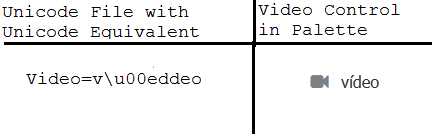
For example, let's say you are translating the designer to Spanish (es) and the Spanish word for the video control is vÃdeo.
- Follow the steps CreatingRuntimeandDesign-TimeTranslations to copy the default properties language file to make the spa.unicode file.
- Provide the translations.
- To properly represent the Ã, you must provide it's unicode equivalent. You can use a tool such as native2ascii which is included in the JDK to convert the international characters to their unicode equivalents. Be sure to save the file with UTF-8 encoding before running the conversion.
- Or you can manually encode international characters by replacing it with \uxxxx where the xxxx is the 4 digit hex value for the unicode character.
- Refer back to steps 4 - 6 under ServerCustomization for the instructions to complete.
Here is what the Video control looks like in the designer if the entry in the spa.unicode file for the Spanish word for video contains the unicode equivalent for the à (\u00e). The language of the browser is set to Spanish (es - if using Firefox):
The UTF-8 and unicode files for a language must reside in the <frevvo-home>/tomcat/webapps/locale directory. You can mix the two different file types with regards to different languages. For a particular language/locale, the system will try to load the UTF-8 version first.
Testing Runtime and Design-Time Translations
Runtime Translations:
Test that your Runtime string translations show up as expected, for example on your Task list by:
- Get the share Url to your task list
- In another browser window/tab, paste the url and append "&locale=yyy" where yyy is the target language code and the name of the target language file that was added to the war file.
http://localhost:8082/frevvo/web/tn/nancy.com/subject/designer/tasks?submissionState=PENDING?embed=&locale=spa
If you append &locale=spa to the task list as a test as discussed above you will notice that frevvo's surrounding page content is visible (as expected) and is not localized. This is correct and expected behavior. You are expected to embed the task list in your own localized web site.
Design Time Translations:
Test that your designer translations show up as expected by:
- LocaleHandling your browser to the target language.
- Login to the frevvo as a designer user.
- Edit a form to verify the designer strings are translated to the language specified by the language file that was added to the war file. An example is shown in Chinese translation example above.
Date and Time Controls
Date and time type controls are locale parsing and formatting aware. When Automatic format is selected, both date and time entry and display formatting will be locale specific.The designer has the option to force a particular date or time format upon the users that is independent of the locale by using the date format and time format properties. but this is not recommended.
For Example: Here is an image of Date/Time controls with the browser language set for German and the Date/Time controls set for Automatic: Notice the date format is DD.MM.YYYY and the time format is HH:MM:
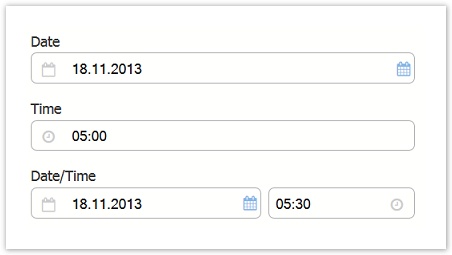
Changing the Firefox browser language setting to Italian displays the dates and times using the format DD/MM/YYYY and HH.MM respectively:
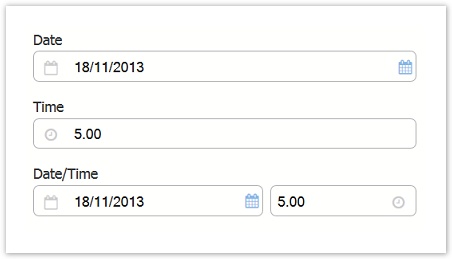
The automatic locale specific formatting and parsing for date, time and date/time controls can be configured by manually adding the following properties in the locale properties file:
| Property Name | Purpose | Notes |
|---|---|---|
| frevvo.date.format | Allows the admin to configure the locale specific format pattern for date controls and the date portion of date/time controls. If not set it falls back to the system default value for the locale as derived from the Java runtime. | See http://docs.oracle.com/javase/6/docs/api/java/text/SimpleDateFormat.html for date and time formatting pattern rules. |
| frevvo.time.format | Allows the admin to configure the locale specific format pattern for time controls and the time portion of date/time controls. TIf not set it falls back to the system default value for the locale as derived from the Java runtime. | See http://docs.oracle.com/javase/6/docs/api/java/text/SimpleDateFormat.html for date and time formatting pattern rules. |
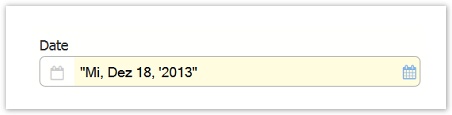
For example, let's say you want to change the MM.DD.YYYY to display as "Day of the week, Month Day ,year" in the German locale. Simply add the following to the ger locale file located in the WEB-INF/data/locale directory as explained ServerCustomization:
frevvo.date.format="EEE, MMM d, ''yy"
After replacing the /WEB-INF/data directory file with the updated one, the date will display as shown in the Firefox browser set for the German locale:
To translate AM and PM in time / date-time control formats, assign the value "h:mm a" to the frevvo.time.format property in the concerned locale file.
Date Picker
The Date picker will be automatically translated according to the browser locale. You can override the browser setting by adding the properties shown below to the locale file. This localization only applies to the date picker on the desktop as the native date picker will be shown on mobile devices. You can translate (locale-specific) month names and abbreviated day of week names (two character). The days of the week will always be shown as Sunday through Saturday, left to right on the date picker. Only the Gregorian calendar system is supported.
To localize the date picker on the desktop, manually add the following properties in the appropriate locale properties file in the WEB-INF/data/locale directory as explained ServerCustomization.
| Property Name | Purpose |
|---|---|
| frevvo.date.month.1 | Allows the admin to override the locale specific short name for the 1st month of the year (January). This overrides the system default value for the locale as derived from the Java runtime. |
| frevvo.date.month.2 | Allows the admin to override the locale specific short name for the 2nd month of the year (February). This overrides the system default value for the locale as derived from the Java runtime. |
| frevvo.date.month.3 | Allows the admin to override the locale specific short name for the 3rd month of the year (March). This overrides the system default value for the locale as derived from the Java runtime. |
| frevvo.date.month.4 | Allows the admin to override the locale specific short name for the 4th month of the year (April). This overrides the system default value for the locale as derived from the Java runtime. |
| frevvo.date.month.5 | Allows the admin to override the locale specific short name for the 5th month of the year (May). This overrides the system default value for the locale as derived from the Java runtime. |
| frevvo.date.month.6 | Allows the admin to override the locale specific short name for the 6th month of the year (June). This overrides the system default value for the locale as derived from the Java runtime. |
| frevvo.date.month.7 | Allows the admin to override the locale specific short name for the 7th month of the year (July). This overrides the system default value for the locale as derived from the Java runtime. |
| frevvo.date.month.8 | Allows the admin to override the locale specific short name for the 8th month of the year (Aug). This overrides the system default value for the locale as derived from the Java runtime. |
| frevvo.date.month.9 | Allows the admin to override the locale specific short name for the 9th month of the year (Sept). This overrides the system default value for the locale as derived from the Java runtime. |
| frevvo.date.month.10 | Allows the admin to override the locale specific short name for the 10th month of the year (Oct). This overrides the system default value for the locale as derived from the Java runtime. |
| frevvo.date.month.11 | Allows the admin to override the locale specific short name for the 11th month of the year (Nov). This overrides the system default value for the locale as derived from the Java runtime. |
| frevvo.date.month.12 | Allows the admin to override the locale specific short name for the 12th month of the year (Dec). This overrides the system default value for the locale as derived from the Java runtime. |
| frevvo.date.weekday.1 | Allows the admin to override the locale specific short name for the 1st day of the week (Sunday). This overrides the system default value for the locale as derived from the Java runtime. |
| frevvo.date.weekday.2 | Allows the admin to override the locale specific short name for the 2nd day of the week (Monday). This overrides the system default value for the locale as derived from the Java runtime. |
| frevvo.date.weekday.3 | Allows the admin to override the locale specific short name for the 3rd day of the week (Tuesday). This overrides the system default value for the locale as derived from the Java runtime. |
| frevvo.date.weekday.4 | Allows the admin to override the locale specific short name for the 4th day of the week (Wednesday). This overrides the system default value for the locale as derived from the Java runtime. |
| frevvo.date.weekday.5 | Allows the admin to override the locale specific short name for the 5th day of the week (Thur). This overrides the system default value for the locale as derived from the Java runtime. |
| frevvo.date.weekday.6 | Allows the admin to override the locale specific short name for the 6th day of the week (Fri). This overrides the system default value for the locale as derived from the Java runtime. |
| frevvo.date.weekday.7 | Allows the admin to override the locale specific short name for the 7th day of the week (Saturday). This overrides the system default value for the locale as derived from the Java runtime. |
For example, Let's say you add the properties below to a Chinese translation file named zh:
frevvo.date.month.1=JaC
frevvo.date.month.2=FeC
frevvo.date.month.3=MaC
frevvo.date.month.4=ApC
frevvo.date.weekday.1=Mc
frevvo.date.weekday.2=Tc
frevvo.date.weekday.3=Wc
frevvo.date.weekday.4=Tc
After replacing the modified /WEB-INF/data directory file, restarting frevvo and setting the Firefox browser to Chinese - zh, the date picker will display as shown in the image:
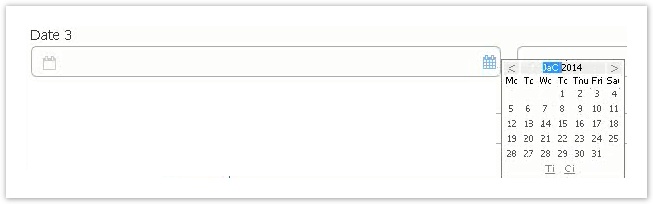
Notice the month is displayed as JaC and the days of the week show Mc, Tc, Wc and Tc for Sunday - Wednesday as specified by the format properties we added to the locale file. Thursday, Friday and Saturday display in English - the language setting of the browser in this example.
Entries for the Today and Close buttons on the Date Picker are already included in the default locale file so all you need to do is add your translations for them in the locale file you are going to use.
# Date Picker
today=
close=
Internationalization of Date Picker for iOS.
The locale of Date picker on the safari browser changes with the iPhone/iPad's "Region Format" settings , not the language settings. After setting the language in iOS, set the appropriate country/region format in the iphone general settings.
Navigate these settings to change the Country/Region Format on iOS devices: General>International>Region Format : Select the Appropriate Country.
International Characters for PDFs
You can add support for International characters for a form's Print view and submission PDFs by adding unicode fonts with broad language support to the frevvo war file. Refer to this documentation for the details.
Internationalization of the Task List / Workflow Designer
The Task list and workflow designer are not fully translated - they will be completed in a future release.