Working with Rules
Business rules are added by editing your form or workflow. Click the Rules editing mode in the Form/Workflow Designer header to add new business rules or edit existing ones.


frevvo provides two ways to create business rules:
- Visual Rule Builder - visual wizards to help create your rule. The Visual Rule Builder provides access to the generated JavaScript in the Rule Validator for editing.
- Rule Validator - canvas to type in JavaScript with tools to help form/workflow designers write and debug rules.
Create a new rule by clicking on the  icon.
- Your new rule is given a randomly generated name. Change the name and description to describe the rule function.
- Click the Run Builder button to open the Visual Rule Builder (Click the link to find out more information about the wizard) or the Rule Code button (Click the Rule Code link for details about the Rule Validator) to enter the JavaScript directly.
- Click any
 icon to edit an existing rule in the Visual Rule Builder.
- Use the
 Action Menu to
- Collapse or expand the rule (you can also collapse/expand by clicking on the rule name or the carrot.)
- Delete
 a rule. Confirm your choice in the dialog that pops up and the rule will be immediately removed. This is an irreversible process so make sure you do not need the rule before you delete it.
- Enable
 /Disable
 the rule. Rules are enabled by default.
- Move
 a rule to reorder the list. Depending on the rule's current location your choices may be "Move up," "Move down," "Move top," and/or "Move bottom." You may also reorder rules by dragging and dropping them to another spot in the list.
- Click
 Working with Rules to see a read-only view of the javascript for all the rules in your form/workflow.
- Click Save and Test
 to test your rule without leaving the Rule Editor.
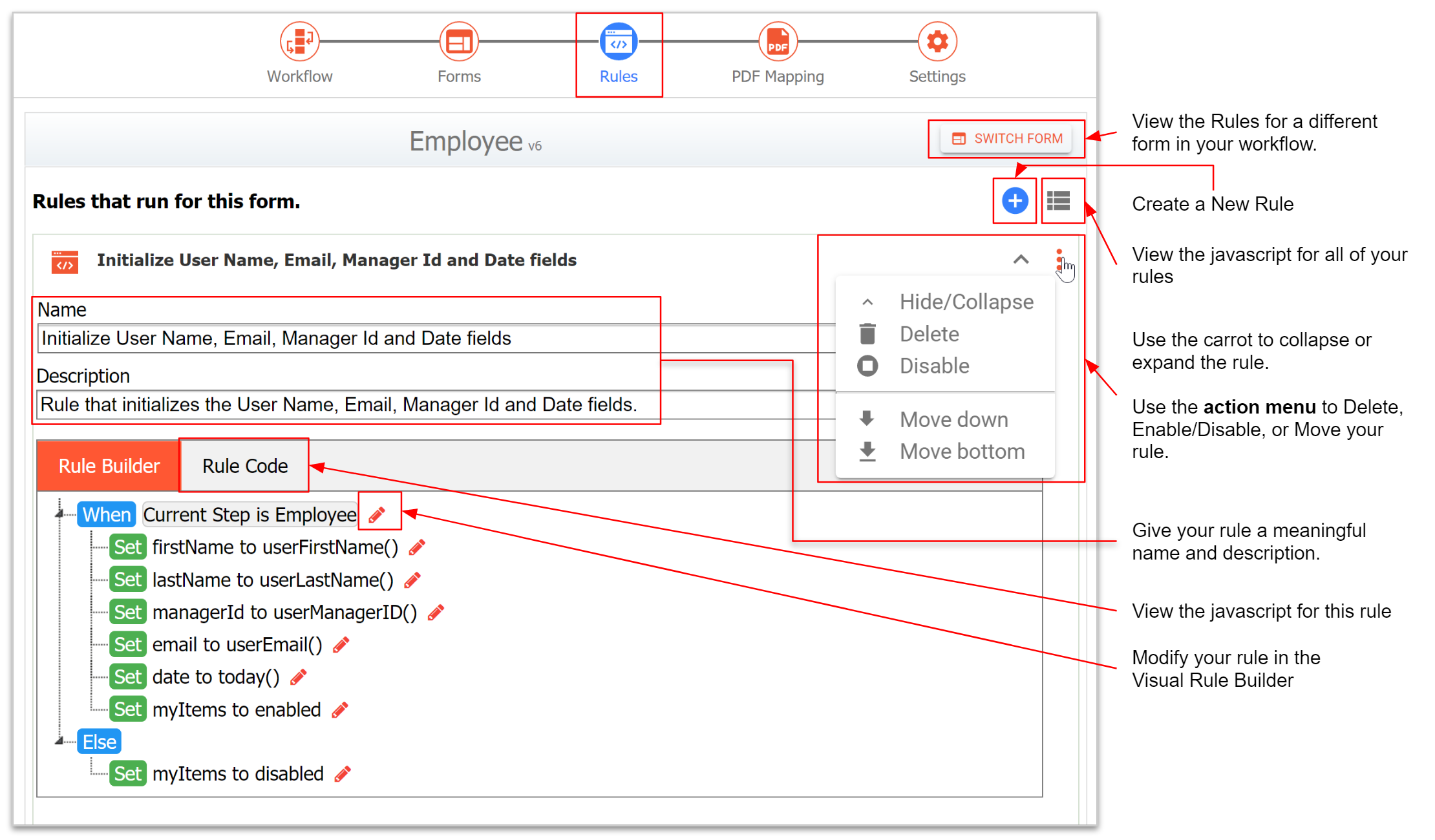
Refer to Rule Examples for many real-world samples.
On this page
Writing Rules / Syntax
A business rule is created as JavaScript code. The Visual Rule Builder provides a wizard that generates the JavaScript for you or you can enter the code directly into the Rules Validator canvas. Either way, rules are saved and will run after you save your form using Save or Save/Test .
A rule is of the form:
if (condition)
{
    true actions;
}
else
{
    false actions;
}
You can create more advanced rules primarily for the purpose of looping over repeating items. We will describe these later in the many rules examples below and here.
Some basic concepts of JavaScript:
Everything is case-sensitive. Ex: var color1 and var Color1 are two different variables.
Variables are loosely typed. Ex: var color = 'red'; and var num = 33 case the variable color to be a string type and num to be a numeric type.
End-of-line semicolons are optional. However we recommend you use semicolons to terminate lines as part of proper coding practice as this often prevents mistakes. The rules validator will flag missing semicolons as an issue, so you should use them to terminate lines in your rules.
Comments. Code can be commented out using either // or /* */ syntax
Rules do not currently support the syntax:
switch statement
Rules support the following syntax with some limitations:
try-catch
Example: The value of the control named FN will get set to 'got exception' because the JavaScript variable named x is undefined in this rule.
if (form.load) {
    try {
        x.randomproperty = 'blah';
    } catch (e) {
        FN.value = 'got exception';
    }
}
However, catching an exception when a frevvo control does not exist (is undefined), will not work as you might expect. This is because frevvo catches the problem while parsing the rule before the JavaScript interpreter catches the error. In the example below the control named Color does NOT exist in the form.
if (form.load) {
    try {
        Color.value = "red";
    }   catch(e) {
        msg1.value = "error caught: " + e;
    }
}
Max Size for Rule Code
Write concise JavaScript rules for readability and improved performance. The Visual Rule Builder naturally enforces this by limiting your options. While frevvo allows up to 64Kb of code per rule, this is more than what you should use in practice. Significantly large rules may impact performance.
Strings vs Numbers
Because JavaScript is a loosely typed language you may run into occasions where you are trying to add field values and the rule performs string concatenation instead. There are several ways to designate math vs string. One simple way is by adding a *1 to the variable. id = id*1 + 1; will ensure that id equals the current value plus one rather than the current value with a 1 appended. Ex: If the current value was 4 and you didn't write id*1 the result may be "41" rather than 5. In the Visual Rule Builder, "+" is used for addition and the concat() function is used for concatenation. The Visual Rule Builder supports text-to-number conversion with the function number(). For example, you may want to calculate a total from two Text controls that contain numbers. Set Total to number(Text1) + number(Text2) to convert the Text control strings to numbers.
You may also encounter a situation in a rule in which money controls perform a string concatenation rather than addition. To correct this:
Open the form with the rule in the Designer, change the money controls to text controls, and then save the form.
Open the form, change the text controls back to a money controls, and then save the form again.
See this topic about string and numeric conversion.
Writing Conditions
One of the most common conditions is a rule that executes as soon as the user enters a value in control. The test for this condition depends on if the field is a string type or a numeric type.
String Types: text, textarea, date, phone
if (name.value.length > 0) Numeric Types: money, quantity, number
if (name.value != null) or if (name.value > 0) Many times the condition name.value.length > 0 can be dropped altogether and the rule can be simplified. This rule executes whenever a user enters a value into either the control named firstname or lastname because the firstname and lastname controls are on the right side of the assignment operator.
fullname.value = firstname.value + ' ' + lastname.value; Conditions testing for equality should use the === operator and not the ==. The latter will not pass the validator's strict syntax verification even though it may perform correctly at runtime.
if (Age.value === 13)Use caution when switching == to === as the latter removes the type coercion. For example, dropdown, radio and checkbox control values are text types. So you must quote values when performing comparison operations:
Ex: if (Building.value === 1) will evaluate to true. You must quote the 1 as in if (Building.value === '1') to make the one a text type.
Control Name
Rules usually need to reference form controls. You assign a control a name using the control's name property.
Names are case sensitive. If your control is named FirstName then you must write the rule as FirstName.value. firstname.value will not work.
Use English alphabet characters only when naming controls. For example, controls named with ó as in Póliza may cause issues when the control is used in a business rule and with submission data.
It is highly recommended that you avoid using JavaScript Reserved Keywords as control names. For Example, a section named New in your form will cause rule validation errors if explicitly referenced in a rule. Your rule may still work but the only way to fix the error in the rule validator is to change the name of the control. Click here for a list of the JavaScript Reserved Keywords to avoid.