Upgrade Guide
STOP! Before you begin the migration process:
- Please check the Supported Platforms to confirm the latest requirements. Note that v11.0.x is certified on OpenJDK (11.0.10).
- IMPORTANT: Check that your frevvo database is a supported version; v11 will not work on some older unsupported versions.
- Please read and understand the Planning for v11.0 which may require your action before you begin your upgrade. Note that v11 includes changes introduced in v10.2 and v10.3. There are important migration considerations to review before you upgrade.
- The v11 upgrade will take longer than previous frevvo upgrades due to significant model migration. Please plan for frevvo to be unavailable for up to an hour during your upgrade.
v11 License Key Required
A v11 license key is required for this version of frevvo if you are upgrading from a prior version. Request a v11 license by completing this form before you begin the upgrade.
Determine Your Upgrade Path
Your frevvo Version | Recommended Upgrade Path to v11.0.x |
|---|---|
| v9.0.x | Upgrade to v10+ (see v10.0 Upgrade Guide), then upgrade to v11.0 |
| v10.0.x, v10.1.x | Upgrade directly to v11.0 |
Note: Upgrades from frevvo 6.3.9 - 6.3.12 through v7.4.x are supported but these versions are not available for general release.
Migrating from HSQLDB
frevvo does not support the use of HSQLDB for use beyond demo/trials of the frevvo software. If by mistake you continued to use the demo/trial HSQLDB database for production use, you will need to first migrate your data to one of frevvo supported production databases BEFORE you can upgrade to later versions of frevvo.
Please follow the instructions on this page to perform your upgrade.
Upgrading frevvo
Please read the following upgrade steps prior to starting the migration.
frevvo recommends that you test the upgrade process on your test server before performing it on your production server. Contact your frevvo Account Manager for information if you do not have a test environment.
Prepare for the upgrade
- Please read and understand the Migration Considerations that may require your action before beginning.
- Install OpenJDK (11.x) before beginning.
If upgrading from a version prior to v10.1, install Chrome on that same server as your frevvo installation. This is required for PDF Snapshot generation to work in your v11 installation.
PDF Snapshot Generator: Install Chrome/Chromium
A stable version of chrome or chromium browser needs to be installed on same server where frevvo is installed. First, check to see if Chrome is already installed. If not, use one of the following links to install Chrome or a Chromium browser.
The snapshot generator looks for the chrome browser at the following paths. If found, it launches the browser.
/usr/bin/chromium
/usr/bin/chromium-browser
/usr/bin/google-chrome-stable
/usr/bin/google-chrome
/Applications/Chromium.app/Contents/MacOS/Chromium
/Applications/Google Chrome.app/Contents/MacOS/Google Chrome
/Applications/Google Chrome Canary.app/Contents/MacOS/Google Chrome Canary
C:/Program Files (x86)/Google/Chrome/Application/chrome.exe
If the browser is not installed at any of these paths then set the CHROME_PATH environment variable to point to the correct path of the browser binary or set frevvo.chrome.path property in frevvo-config.properties file.
Windows Os:
Open the Start Search, type in “env”, and choose “Edit the system environment variables”
Click the “Environment Variables…” button
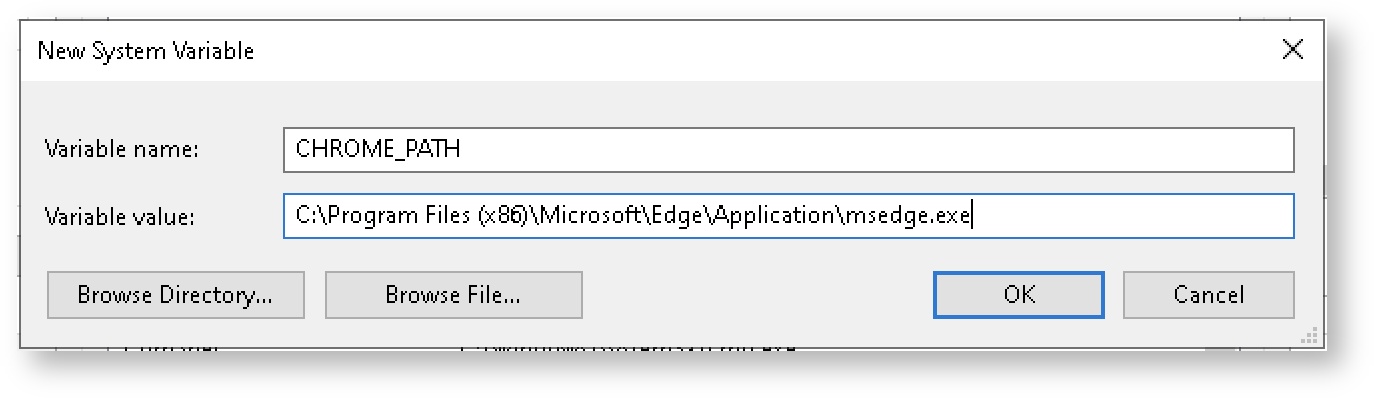
Click the "New..." button in the "System Variables" section
Set the variable name to "CHROME_PATH" and the value to <path to chromium browser exe>
MacOs/Linux
Set the CHROME_PATH environment variable in system profile files (/etc/profile, ~/.bash_profile, ~/.bashrc)
export CHROME_PATH=/opt/bin/chromium
Stop frevvo with one of the methods listed below:
Execute <frevvo-home>\stop-frevvo.[bat,sh]
Stop the Insight Server by closing the window or if you are using the tomcat bundle by typing these commands in the <frevvo-home>\solr directory of your existing installation.
bin\solr.cmd stop -allStop frevvo and the Insight Server through the Computer Management Services console if they are running as Window's services.
- Back up the forms database from your current frevvo installation.
Back up the current frevvo server's installation directory so that you have a copy of all custom configuration parameters.
- Request a v11 license if you are upgrading from a frevvo version prior to v11.0.x.
Oracle DB Permission
Customers using Oracle DB should grand the following permission before upgrading.
GRANT EXECUTE ON SYS.DBMS_CRYPTO TO <frevvo user>;
If you do not do this, you may see an error like "liquibase.exception.DatabaseException: ORA-00904: "DBMS_CRYPTO"."HASH": invalid identifier" in the log file while upgrading, and the upgrade will fail.
Install Upgraded Version
- Download the latest v11.0.x software. The download is a zip file. Extract the contents to any folder of your choice. This folder will be referred to as <frevvo-home> (note that the zip already contains a top-level frevvo folder).
- Install a JDBC Driver.
- Ensure that Chrome or a Chromium browser is installed on the same server as the frevvo installation for PDF Snapshot generation. See the related Installation Task for details.
- If you increased Memory Settings in your previous installation, make those changes to the appropriate files in the new installation. Refer to Hardware and Memory Requirements for the details.
- Navigate to the server.xml file in the <frevvo-home>\tomcat\conf directory of your v11.0.x installation
Configure the Database and Email
- Select your database type
Refer to the Configure the Connection URL topic to point to your current frevvo database. If you are using SQL Server, remember to add the sendStringParametersAsUnicode property with a value of false to your database connection URL if it is not already there.
- Configure Email
- If you made changes to the Default Port in previous releases, make those changes again in the v11.0.x server.xml file.
- Configure SSL for tomcat if it was configured in prior version of frevvo.
- Save the changes to the server.xml file.
All database initialization and/or required upgrades will be automatically done by frevvo.war as part of the frevvo v11.0.x startup.
Copy Properties
See Installation Tasks for commonly used properties. Read the Detailed Release Notes to be sure that all properties you are using are valid in the upgraded version.
- Edit the frevvo-config.properties file in your prior version. This file is usually located in the<frevvo home>/tomcat/conf directory.
- Copy the properties you added or changed.
- Edit the frevvo-config.properties file in the upgraded version, and paste the properties you copied from your prior version.
- Save the frevvo-config.properties file.
Start the Insight Server
If there was not a solr upgrade between the versions you upgrading from and to, you may restore the contents of the <frevvo-home>\data\solr directory from the previous installation directory backup that you made in the Prepare for the Upgrade section to your latest version's <frevvo-home>\data directory.
Follow the steps to start the Insight server BEFORE starting frevvo.
Windows:
- Open a command prompt. Navigate to <frevvo-home>\solr. Type bin\solr.cmd start to run the Insight server in the background, listening on the default port 8983.

You will see this message:

If you close the Insight server (Solr) startup window, the server will stop running. Leave the window open or see these instructions to remove existing services and set up frevvo and the Insight Server to run as Windows services:
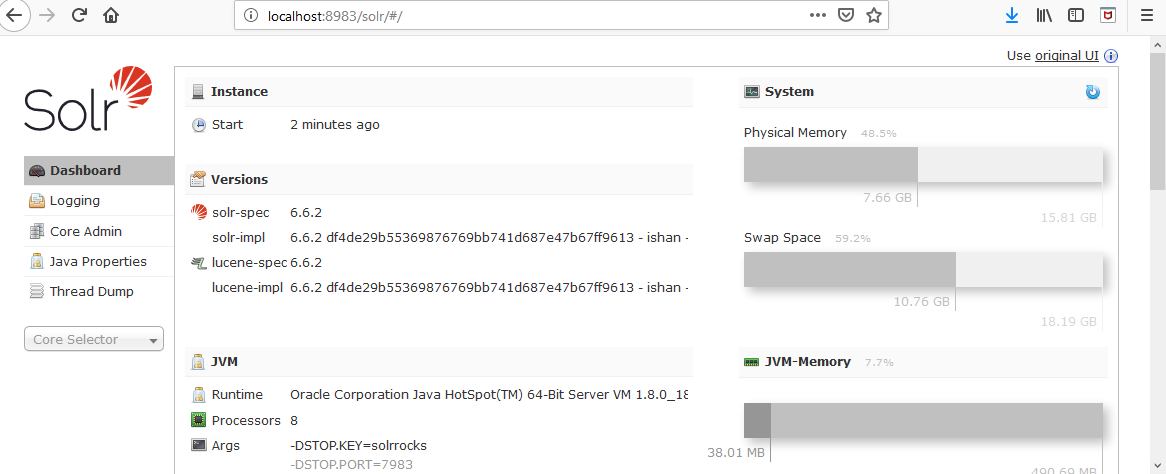
Browse http://<your server:port>/ solr to verify the Insight server is running. The <server:port> default values are localhost:8983. Change localhost to the server name and 8983 to the port the Insight server is running on if they are different than the defaults. Do not include the angle brackets <>. You will see the Insight server (Solr) dashboard with the current status.
Linux:
- Ensure that the scripts are executable: chmod 755 <frevvo-home>/tomcat/bin/*.sh
- Navigate to <frevvo-home>/solr/bin. Run this command to make the solr startup file executable:
chmod +x solr - Navigate back to the solr directory.
cd .. - Start the Insight server by typing: bin/solr start - this starts the Insight server in the background.
- Browse http:<your server:port>/solr to verify the Insight server is running. The <server:port> default values are localhost:8983. Change localhost to the server name and 8983 to the port the Insight server is running on if they are different than the defaults. Do not include the angle brackets <>. You will see the Insight server (Solr) dashboard with the current status.
Start frevvo
Start the frevvo v10.1.x server by running the start-frevvo.bat or start-frevvo.sh files (depends on your Operating system) in the <frevvo-home>\frevvo directory. Then follow these instructions to login and enter your upgrade license key.
If you are running frevvo and the Insight Server (Solr) as Windows services, you must delete the existing services then reinstall them for the services to run properly.
- Follow these steps to delete the existing Insight Server service for Windows Vista, 7, 8 or 10 operating systems:
- Login as an administrator.
- Verify the Insight Server service name by double clicking it in the Windows Services list
Type this command: If your service name has spaces in it, use quotes around the service name.
sc delete <ServiceName>
The message "DeleteService SUCCESS' will display when successful.
Remove the frevvo service by running the <frevvo-home>\Remove-Service batch file.
Perform these steps to reinstall the Insight Server and frevvo services.
Connectors
Ensure you upgrade to the supported version of the connectors for your upgraded version of frevvo. Version information can be found at the links below.
- If you are using the frevvo Database Connector, you must reinstall and configure it again for the v11.0.x installation.
- If you are using the Google connector you must reinstall and configure them for the v11.0.x installation.
- If you are using the frevvo Filesystem Connector, you must reinstall and configure it again for the v11.0.x installation.
- If you are using the frevvo SharePoint Connector you must reinstall and configure it again for the v11.0.x installation.
- If you are integrating with IIS, review these updated steps to configure Tomcat.
sameSiteCookies Attribute
Recent browser versions (especially Chrome v80+), by default, allow cookies to be sent only with top-level navigation and GET request initiated by third-party websites. When you need to expose cookies to a third party site, such as using the SAML security manager or embedding in an iframe, you need to use https (Chrome only) and explicitly set the samesite attribute of the cookie to "none". frevvo includes a tomcat version that allows configuring the cookie processor with this attribute. This documentation provides more information and details across browsers.
The sameSite value "none" is not supported prior to iOS 13 (macOS before version 10.15). Setting sameSite to "none" in tomcat may require iPhone/iPad to be upgraded.
For third party access, you must use https and update the provided tomcat/conf/context.xml CookieProcessor element to add the sameSiteCookies attribute.
<CookieProcessor className="org.apache.tomcat.util.http.LegacyCookieProcessor" allowEqualsInValue="true" sameSiteCookies="none"/>
On premise customers who do not want to make these updates need to turn on the legacy behavior in the chrome browser. Please see this Chrome documentation for details.
Things to Check
Verify that any frevvo Connectors are up and running.
- Login as a tenant admin
- Click on the Configuration Checklist link to verify that all configurations are complete.
- Click on the Reports link. Click on one of the Reports to verify that submission data is displayed.
- Login as a tenant designer user
- View and edit a form/flow
- Verify that your submissions are displayed when you click the
 Submissions icon.
 - Test forms/flows
Login as the superuser admin.
- Verify that the Refresh Searchable Items process ran and completed successfully.
Troubleshooting
If you start frevvo before the Insight server, you will see this message when you browse the frevvo login URL. Follow these steps to start the servers in the correct order: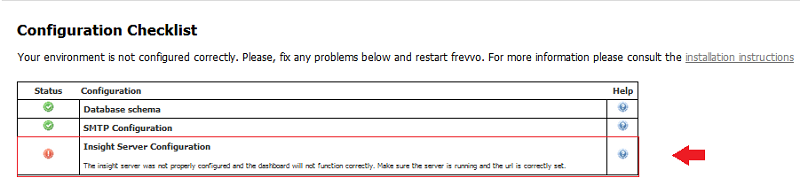
Navigate to your <frevvo-home> directory.
Run the stop-frevvo.bat or stop-frevvo.sh file depending on your Operating system to stop frevvo.
Open a command prompt. Navigate to <frevvo-home>\solr-6.6.2
Start the Insight server. Refer to Start the Insight Server above for the instructions.
Browse http://<your server:port>/solr to verify the Insight server is running. The <server:port> default values are localhost:8983. Change localhost to your server name and 8983 to the port the Insight server is running on if they are different from the defaults.Do not include the angle brackets <>.
Start frevvo.
Applying a Minor Patch Update
If you're applying a minor patch update, for example, applying patch v11.0.x to your installed v11.0.2 frevvo server, you can follow these simple steps instead of the more lengthy upgrade steps.
The latest major frevvo version and the compatible frevvo connectors are available from the frevvo Software Downloads Directory.
- Unzip the downloaded build zipfile to a temp directory.
- Copy the \temp\frevvo\tomcat\webapps\frevvo directory.
- Stop frevvo.
- Delete the frevvo directory file from your <frevvo-home>\tomcat\webapps directory.
- Paste the frevvo directory copied above in your <frevvo-home>\tomcat\webapps directory.
- Delete everything inside \frevvo\tomcat\temp directory of your installation.
- Start frevvo.
Apply a Patch with Tomcat Upgrade
If you are applying a patch release that includes an Apache Tomcat upgrade to your installed v11.0 frevvo server, follow these modified upgrade instructions. Refer to the sections above for detailed steps.
Stop frevvo.
Back up the current frevvo server's installation directory so that you have a copy of all custom configuration parameters.
- Install the Upgraded Version.
- Download the latest v11.0.x software. The download is a zip file. Extract the contents to any folder of your choice. This folder will be referred to as <frevvo-home> (note that the zip already contains a top level frevvo folder).
- Install a JDBC Driver.
- If you increased Memory Settings in your previous installation, make those changes to the appropriate files in the new installation. Refer to Hardware and Memory Requirements for the details.
- Navigate to the server.xml file in the <frevvo-home>\tomcat\conf directory of your new installation
- Configure the database and email.
- Install any Connectors that were installed in your previous version.
Restore the contents of the <frevvo-home>\data\solr directory from the previous installation directory backup that you made in Step 2 to your latest version's <frevvo-home>\data directory. Then, start the Insight Server.
- Start frevvo.